On October 26, 2026, Apple shipped iOS 27.2 with a long list of security fixes, and one of them deserves a few minutes of your weekend. Apple’s notes describe a CoreMedia flaw where “a malicious app may be able to access the camera without user permission.” Updating closes the hole, and it is also a good excuse to open your iPhone camera access settings and see which apps you have already let in.
The fix is in place once you install the update. Your own choices are a separate matter: every app you tapped Allow for over the years still has the camera, bug or no bug. The whole review takes about five minutes.
What the iOS 27.2 camera fix covers
The flaw is tracked as CVE-2026-86990 and was reported by researcher Mustafa Calap. According to Apple’s security notes for iOS 27.2 and iPadOS 27.2, Apple fixed “an access issue” in CoreMedia, the part of iOS that handles audio and video, “with improved access restrictions.” In plain terms, a rogue app could have reached the camera without first showing you the permission prompt.
It was not the only privacy patch in the release. The same update fixes a Calendar issue that could expose sensitive user data, another CoreMedia problem tied to sensitive user data, a Kernel bug that could let an app get around Privacy preferences, and an AccessorySetupKit issue that could have let a malicious app reach Bluetooth without consent. Apple’s notes for the camera flaw do not say it was used in real attacks.
Which devices get iOS 27.2
| Device family | Oldest model that gets the update |
|---|---|
| iPhone | iPhone 11 (anything newer qualifies too) |
| iPad Pro | 12.9-inch (4th gen) or 11-inch (2nd gen) |
| iPad Air | 4th gen |
| iPad | 9th gen |
| iPad mini | 6th gen |
If your iPhone is older than an iPhone 11, it stays on an earlier software line. Apple also fixed the camera flaw in iOS 26.7.2 for people staying on iOS 26, and in iOS 18.7.11 for the iPhone XS and XR, so check Software Update anyway.
5 ways to check your iPhone camera access settings
Work through these in order. The first one matters most, and the rest are about tidying up permissions you granted long ago and forgot about.
- Install the update. Go to Settings > General > Software Update and install iOS 27.2 if it is waiting. Nothing else on this list blocks the CoreMedia flaw; only the patch does.
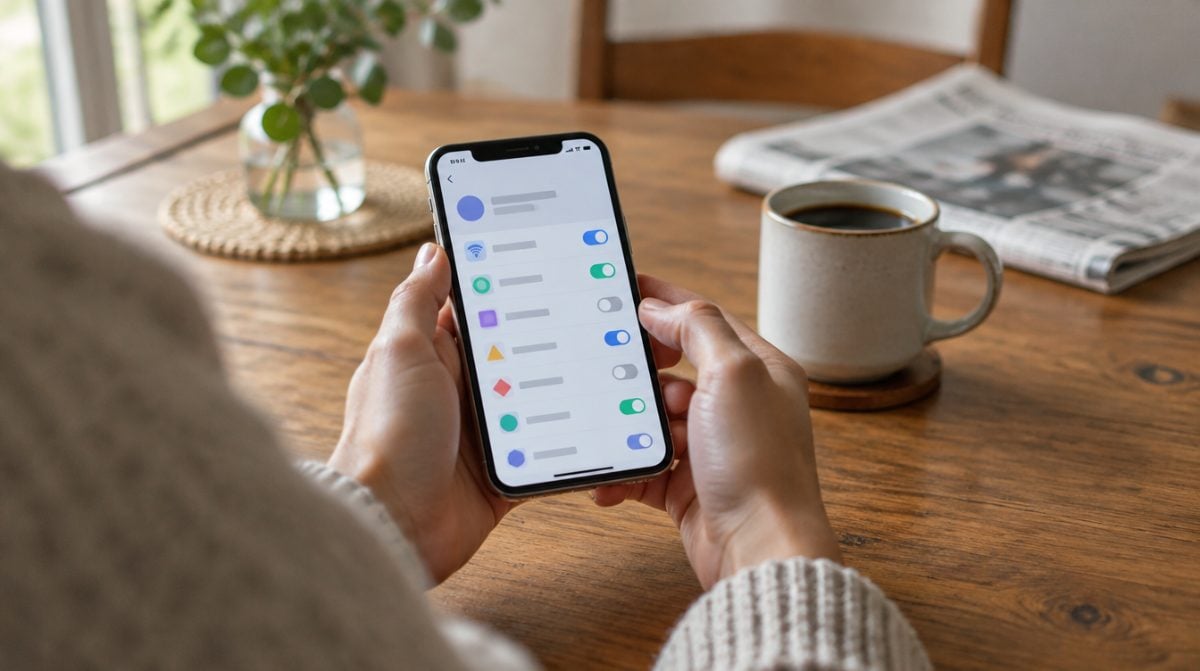
- Open the camera list. Head to Settings > Privacy & Security > Camera, which is where your iPhone camera access settings live. Every app that has asked to use the camera shows up here with a switch beside it.
- Switch off what you do not use. A video calling app, a banking app that scans checks and your favorite photo app all make sense. A flashlight app, a game or a shopping app you opened once probably does not need your camera, so turn it off.
- Keep an eye on the green dot. A small green dot near the top of the screen shows that an app is using the camera right now. If it appears while nothing on screen should be filming, close the app and revisit your camera list.
- Repeat on your Mac. On a Mac, the same list lives in System Settings > Privacy & Security > Camera. While you are there, run Software Update on the Mac as well.
Changing your iPhone camera access settings for an app does not delete it or its data. It simply means the app has to ask again, or fail quietly, the next time it wants the camera.
Which apps deserve camera access
A simple rule for your iPhone camera access settings works for most families: if you cannot picture the moment you would point that app at something, it should not have the camera. Here is how that plays out.
- Keep on: FaceTime alternatives like WhatsApp or Zoom, document scanners, banking apps you use for check deposits, and social apps you post photos from.
- Probably off: games, retail apps, news readers and utilities whose main job has nothing to do with photos or video.
- Check with the kids: on a child’s iPhone, walk through the camera list together. It is a quick way to talk about what each app actually does.
If you are in a security-review mood, our guide on how to check an iPhone for spyware covers the bigger warning signs worth looking for.
When app camera access on iPhone stops working
The opposite problem is common too. You open a video app, the screen stays black, and the app complains that camera access is denied. In most cases you turned the switch off at some point and forgot.
- Turn the switch back on. Return to Settings > Privacy & Security > Camera and flip the toggle for that app.
- Close and reopen the app. Some apps only check permission when they launch.
- Check Screen Time limits. On a managed or family iPhone, restrictions set by a parent or work profile can override your iPhone camera access settings.
- Update the app. An old version of an app may not play nicely with the newest iOS release.
Mac owners face the same kind of permission puzzle with other system areas. Our walkthrough on giving an app Full Disk Access on Mac explains when it is safe to say yes.
Frequently asked questions about iPhone camera permissions
How do I change app permission for the camera on iPhone?
Open Settings, tap Privacy and Security, then Camera, and use the switch next to each app. Changes take effect right away, and you can flip a switch back at any time.
Was the iOS 27.2 camera bug used in attacks?
Apple has not said so. Its security notes describe what the flaw could allow, but they do not mention any active exploitation for this camera issue.
Do I still need to review my iPhone camera access settings after updating?
Yes, it is a good idea. The update fixes the flaw, but it does not remove camera access you already granted to apps in the past.
Is it worth reviewing your iPhone camera access settings now?
Anyone on iPhone 11 or newer should install iOS 27.2 today, and anyone who has never opened their iPhone camera access settings should do it while the update downloads. If you already prune permissions every few months, the update alone covers you. Think of it like checking who still has a spare key to the house: most of them are fine, but a couple will surprise you.