The quickest way to update your iPhone or iPad is right on the device: plug it in, join Wi-Fi, then go to Settings, General, Software Update and tap Download and Install. That covers most people most of the time. When the update refuses to show up, or the install keeps failing, a Mac or Windows PC can finish the job instead.
Below are both ways to update your iPhone or iPad, the automatic update settings worth a look, and what to try when storage, Wi-Fi or a stalled progress bar gets in the way. Back up first, every time. It takes a few minutes, and it is the one step you will regret skipping.
What you need to update your iPhone or iPad
| Method | What you need | Best for |
|---|---|---|
| Over Wi-Fi on the device | Wi-Fi, a charger, enough free storage | Almost every update |
| Finder on a Mac | A Mac on macOS Catalina or later and a cable | Updates that won’t appear or install wirelessly |
| iTunes | A Windows PC, or a Mac on macOS Mojave or earlier, and a cable | The same problem cases on older Macs and PCs |
Before you update your iPhone or iPad by either route, make a backup to iCloud or to your computer. You will also want your passcode handy, since the device asks for it before installing.
How to update your iPhone or iPad over Wi-Fi
- Back up the device with iCloud or your computer.
- Connect it to power and to a Wi-Fi network.
- Open Settings and tap General.
- Tap Software Update. The top of the screen tells you which version you are on and whether anything newer is waiting.
- Tap Download and Install on the update you want.
- Enter your passcode if asked, then follow the prompts until the device restarts.
The download runs in the background, so you can keep using the phone or tablet until it is ready to install. Some updates also give you the choice to install now or overnight, which is handy if you need the device for the next hour.
Two updates listed? When Apple ships a new major version, the Software Update screen can show both the latest release and a smaller update for the version you already run. Read the names before you tap. If you want to keep your current version for a while, our guide on how to stay on iOS 26 while Apple pushes iOS 27 walks through picking the right entry.
Set up automatic updates so you don’t have to remember
Apple recommends switching on automatic updates, and it is the easiest way to update your iPhone or iPad without having to think about it. Go to Settings, General, Software Update, Automatic Updates, and you will find two switches.
- Automatically Install. The device downloads and installs updates overnight, as long as it is charging and on Wi-Fi. You get a heads-up beforehand.
- Automatically Download. This only shows up when Automatically Install is off. Updates arrive in the background and wait for you to tap install.
System Files. Apple also sends smaller system file updates that improve features without bumping your version number. If you prefer to install full updates by hand, turn off Automatically Install in the section for device updates and leave it on under System Files. You still get those small fixes without any surprise upgrades.
How to update with a Mac or Windows PC
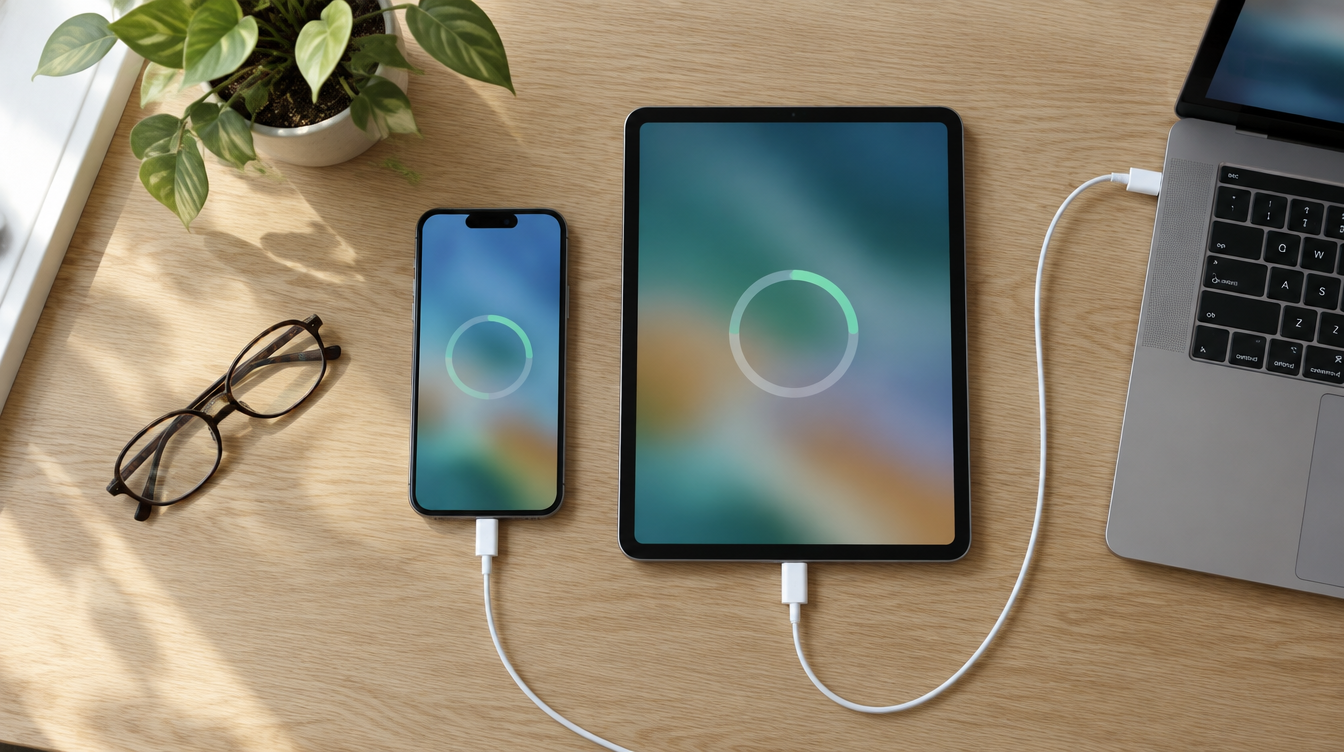
Apple treats a computer as plan B, for the times you can’t update your iPhone or iPad wirelessly. Use a computer you own or trust, and if that computer is borrowing internet from the phone’s Personal Hotspot, move it to another Wi-Fi network or Ethernet first.
On a Mac with macOS Catalina or later. Open a Finder window and connect the iPhone or iPad with a cable. Pick the device from the Finder sidebar and open the General section. From there, Check for Update looks for new software, and Download and Update starts the install. Follow the prompts and type the device passcode if it asks.
On a Windows PC or an older Mac. Open iTunes and plug in the device. Click the device button near the top of the iTunes window, open the Summary tab, and click Check for Update. Then click Download and Update and finish the onscreen steps, again with the passcode if prompted.
When the update won’t download or install
Apple’s troubleshooting page for stuck updates lists five usual culprits: the device is too old for the newest software, storage is full, the download is crawling, the device can’t reach Apple’s update server, or the install stalls partway. Work through these in order before you try to update your iPhone or iPad again.
- Check compatibility. Look up your exact model against Apple’s supported device list. Our iOS 27 compatible devices rundown covers the current release.
- Free up space. If the device offers to remove some apps temporarily, tap Continue. Apple reinstalls them once the update finishes. Otherwise, go to Settings, General, iPhone Storage (or iPad Storage) and turn on Offload Unused Apps, or delete a few large apps yourself.
- Fix the connection. Stay on Wi-Fi, pause other big downloads, and turn off any VPN or proxy, since those can block the update servers. If an alert such as Unable to Check for Update keeps coming back, try a different network.
- Delete the update and start over. In the same Storage screen, find the update in the list, tap it, then tap Delete Update. Head back to Software Update and download it fresh.
- Switch to a computer. If none of that works, use the Finder or iTunes steps above.
A slow progress bar is not always a broken one. Big releases and nearly full devices simply take longer. Keep the device on its charger, and if the battery does run out mid-install, plug it back in and power it on so the process can finish. If a computer can’t see the device at all, or the Apple logo hangs for minutes without any progress bar underneath, Apple points you to recovery mode as the next step.
Frequently asked questions
How do I update my iPhone without enough storage?
Tap Continue if the device offers to remove apps temporarily, and Apple puts them back after the update. You can also turn on Offload Unused Apps in Settings, General, iPhone Storage, or update with a computer.
Can I update my iPad from my Mac?
Yes. On macOS Catalina or later, connect the iPad, select it in the Finder sidebar, click General, then Check for Update. Older Macs use iTunes instead.
How long does an iPhone update take?
It varies with the update size, your connection and how much free storage you have. Large updates on a nearly full device take the longest, so keep it plugged in until it finishes.
Should you update your iPhone or iPad right away?
For security fixes and small point releases, yes: update your iPhone or iPad as soon as it is backed up, or let Automatically Install handle it overnight. Big version jumps are where waiting a week or two can make sense, especially if you rely on a work app. The setup that serves most people is simple: a fresh backup, automatic updates on, and a computer kept in reserve for the rare update that sticks.