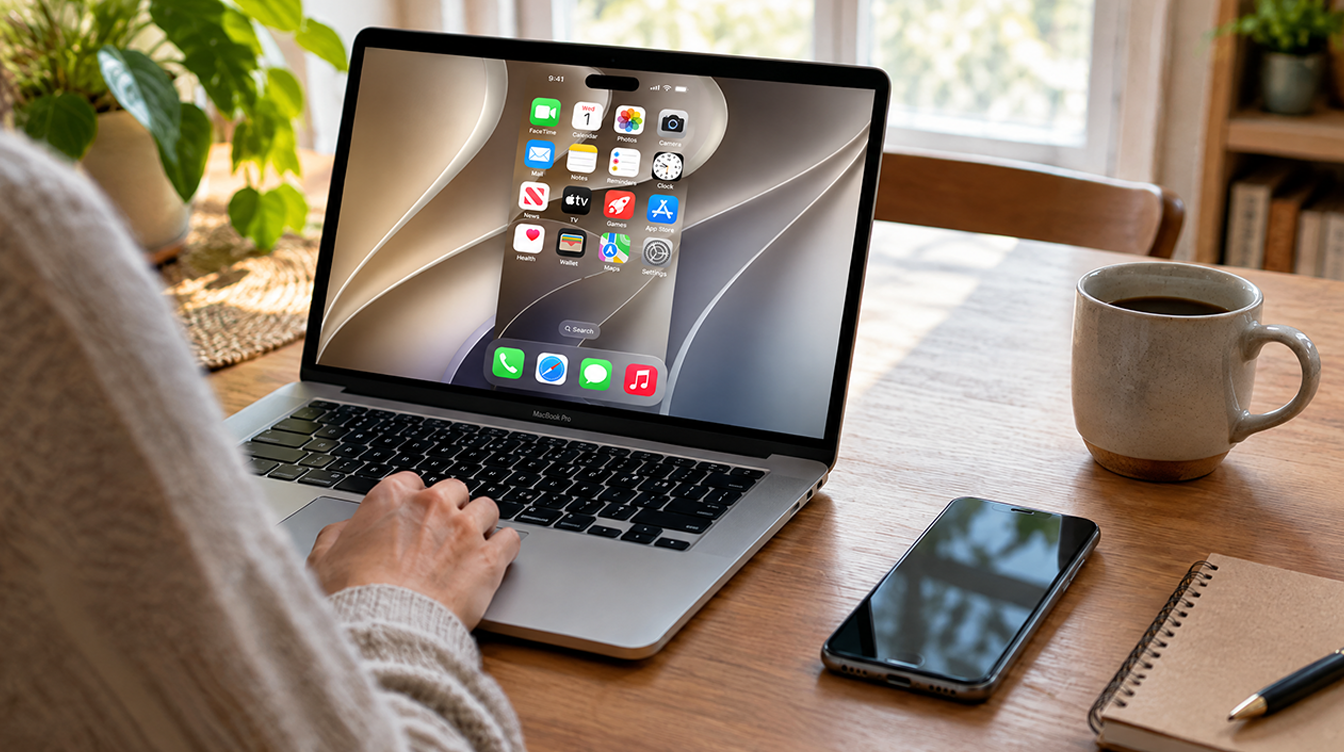
The short version: iPhone Mirroring macOS 27 lets you drag the window to any size you want and opens your iPhone’s Control Center with a keyboard shortcut. Grab a corner of the window to resize it, press Command-9 to snap back to normal iPhone size, and press Command-4 when you need Control Center.
Those three new tricks clear up two of the oldest complaints about the feature. Until now, sizing meant picking Larger, Smaller or Actual Size from a menu, and there was no shortcut for Control Center. Below is what you need, how each new control works, and the limits Apple has not lifted.
What you need for iPhone Mirroring macOS 27 features
Basic mirroring has worked since macOS Sequoia 15. The drag-to-resize window and the Control Center shortcut are the parts that require macOS 27 on your Mac. The rest of the checklist has not changed:
| Item | What Apple requires |
|---|---|
| Mac | Apple silicon or an Apple T2 Security Chip; macOS 27 for the new window and shortcut |
| iPhone | iOS 18 or later, protected by a passcode |
| Apple Account | The same account on both devices, with two-factor authentication on |
| Wireless | Bluetooth and Wi-Fi switched on for the Mac and the iPhone |
| Where the iPhone sits | Close by and locked; charging or in StandBy is fine |
| Region | Not offered in the European Union for now |
One detail catches plenty of people out. Your Mac cannot be using AirPlay or Sidecar, or sharing its internet connection, while you mirror. Switch those off before you open the app.
If you already updated and are watching your free space, our walkthrough on removing Apple Intelligence from Mac storage on macOS 27 can win some of it back.
How to resize the iPhone Mirroring window
Resizing is the headline change in iPhone Mirroring macOS 27, and it takes about ten seconds to learn:
- Launch iPhone Mirroring. It lives in the Applications folder and the Dock, and Spotlight or Siri can open it too.
- Type your iPhone passcode if the app asks for it, then wait until your Home Screen shows up on the Mac.
- Put the pointer on any corner of the window and drag outward to make it bigger or inward to shrink it.
- Changed your mind? Press Command-9, or use the iPhone size button on the toolbar, to put it back at standard iPhone size.
The fixed sizes have not gone anywhere. Open the View menu for Larger, Smaller and Actual Size, or tap Command-Plus, Command-Minus and Command-0 on the keyboard. Fixed steps suit people who like things tidy. Dragging is better when you want the phone sitting neatly beside a browser window or a spreadsheet.
A larger window gives apps more room, but Apple has not said how every third-party app will handle it. Some may not take full advantage of the extra space right away.
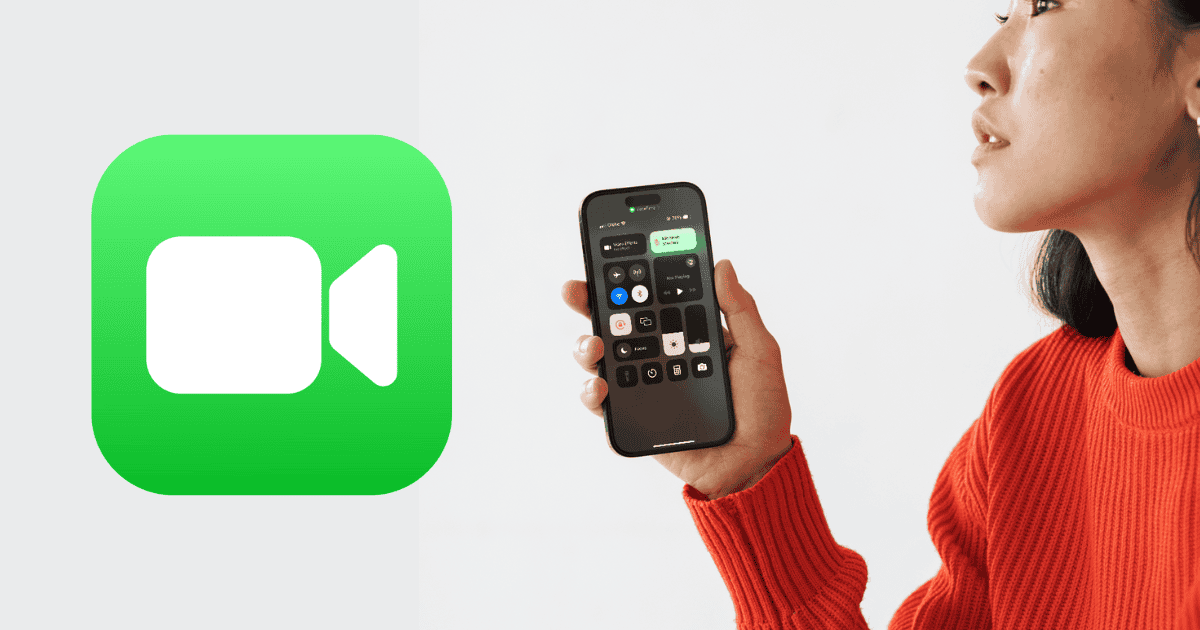
Open Control Center from your Mac with Command-4
Press Command-4 and your iPhone’s Control Center opens inside the mirroring window. It is handy for flipping a Focus or a toggle you keep there without reaching for the phone, which has to stay locked anyway. This shortcut only exists in iPhone Mirroring macOS 27 and later.
Here is the full set of shortcuts worth memorizing:
| Shortcut | What it does | Needs macOS 27? |
|---|---|---|
| Command-1 | Jumps to the Home Screen | No |
| Command-2 | Opens the App Switcher | No |
| Command-3 | Opens Spotlight on the iPhone | No |
| Command-4 | Opens Control Center | Yes |
| Command-9 | Returns the window to standard iPhone size | Yes |
| Command-0 | Sets the window to Actual Size | No |
Privacy settings to check before you lean on it
Before you use iPhone Mirroring macOS 27 every day, open the app’s own iPhone Mirroring menu at the top of the screen and pick Settings. Three options matter:
- Ask every time. You have to authenticate before each session starts.
- Authenticate automatically. After you type your Mac login password, later sessions skip the prompt. Your Lock Screen password setting stays at Immediately.
- Revoke iPhone Access. Wipes the pairing and the notification access, so you start setup from scratch.
On a Mac that the kids or a partner also use, pick Ask every time. Anyone sitting at an unlocked Mac with automatic sign-in can get into your phone, and a bigger window does not make that any less awkward.
Limits that stay in place on macOS 27
The new window is nicer, but the old boundaries of iPhone Mirroring macOS 27 still apply:
- You can pair one Mac with one iPhone at a time.
- The iPhone camera and microphone stay off, so Face ID and phone calls do not work through the window. Place calls from the Mac instead, with Wi-Fi Calling on for both devices.
- Sound comes out of the Mac, unless you have headphones paired with the iPhone itself.
- Premium video can be blocked by some streaming services. If a streaming app refuses to play, that is the service’s rule rather than a fault on your Mac.
- Wireless game controllers have to pair with the iPhone over Bluetooth, not with the Mac.
- After a stretch of inactivity the session pauses on its own, and the iPhone shows it is in use while you mirror.
When iPhone Mirroring is not working after the update
A common snag after a big macOS release is a session that times out or never connects. Work down this list, easiest fixes first:
- Recheck the table above, especially that the iPhone is locked and within reach.
- Update both devices to the newest software available, then restart each one.
- Pause anything heavy on Bluetooth or Wi-Fi, such as music or video going to another speaker or TV.
- Turn off any VPN or third-party security app on either device, and confirm the Mac firewall is not set to block every incoming connection.
- In the iPhone Mirroring settings, choose Revoke iPhone Access and run the setup again.
- Still stuck? Sign out of your Apple Account on both devices, restart them, and sign back in.
Several iPhones around the house can confuse things too. On macOS Tahoe 26.4 and later, including iPhone Mirroring macOS 27, pick the right phone in System Settings > General > AirDrop & Continuity. Apple keeps the full list of steps on its iPhone Mirroring support page, and our older guide to iPhone Mirroring requirements and troubleshooting covers the original setup in more detail.
Frequently asked questions
Can you resize iPhone Mirroring on Mac?
Yes, on macOS 27 or later you can drag any corner of the window to the size you want. Older versions only offer Larger, Smaller and Actual Size in the View menu.
Does iPhone Mirroring work in the EU?
No. Apple has not switched the feature on in the European Union yet, and macOS 27 does not change that.
Why can’t I use Face ID in iPhone Mirroring?
The iPhone camera and microphone are switched off while you mirror, so Face ID and calls do not work in the window. Make calls from the Mac with Wi-Fi Calling turned on for both devices.
Is iPhone Mirroring macOS 27 worth setting up again?
If you tried mirroring once and gave up because the window felt like a postage stamp, iPhone Mirroring macOS 27 deserves a second look, and the Command-4 shortcut makes it far less fiddly. Anyone in the EU, or on an Intel Mac without a T2 chip, can skip it. For everyone else, it is the rare update where the phone gets bigger without costing you a penny.