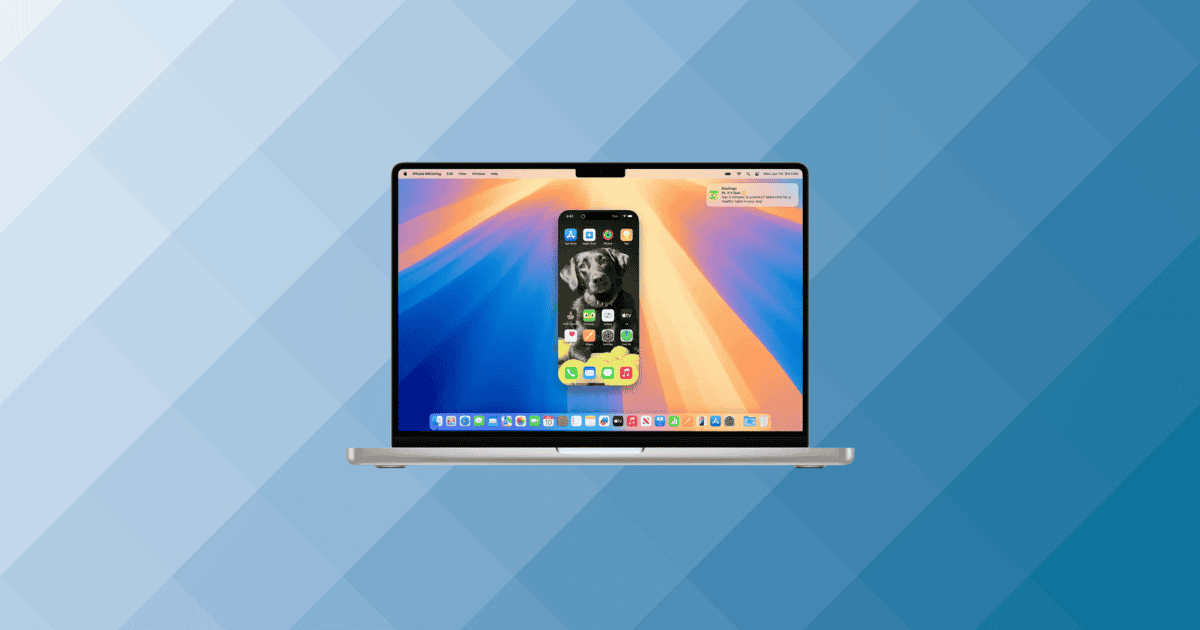
iPhone Mirroring needs five things true at once: a Mac with Apple silicon or the Apple T2 Security Chip, both devices signed into the same Apple Account with two-factor authentication, Wi-Fi and Bluetooth on, your iPhone locked and near the Mac, and neither device busy with AirPlay or Sidecar. Miss one and the app either refuses to connect or never appears at all.
Key Takeaways
- Mac requirement: Apple silicon or the Apple T2 Security Chip, running macOS Sequoia 15 or later. An Intel Mac without T2 cannot do this at all.
- iPhone requirement: iOS 18 or later, with a passcode set. No passcode, no mirroring.
- Both devices must be signed into the same Apple Account with two-factor authentication turned on.
- Your iPhone must stay locked. Picking it up and unlocking it ends the session, which is the number one reason people think it is broken.
- Apple states that iPhone Mirroring is currently unavailable in the European Union. Checked 3 September 2026.
- One Mac and one iPhone at a time. A second Mac cannot mirror the same phone simultaneously.
What iPhone Mirroring Requires
Work down this list before anything else. Almost every failure is one of these, and checking takes two minutes.
| Requirement | Detail |
|---|---|
| Mac hardware | Apple silicon, or an Intel Mac with the Apple T2 Security Chip |
| macOS | Sequoia 15 or later. Live Activities from iPhone need macOS Tahoe 26 or later |
| iPhone software | iOS 18 or later, and the iPhone must be set up with a passcode |
| Apple Account | Same account on both devices, with two-factor authentication enabled |
| Connectivity | Bluetooth and Wi-Fi turned on, on both devices |
| iPhone state | Locked and near the Mac. Charging or in StandBy is fine |
| Mac state | Not sharing its internet connection, and not using AirPlay or Sidecar |
| Region | Not available in the European Union |
The T2 line is the one that surprises people. iPhone Mirroring is not an Apple silicon exclusive, so an Intel iMac or MacBook Pro from 2018 through 2020 with the T2 chip qualifies, as long as it runs macOS Sequoia 15 or later. Anything older than that, or Intel without T2, is out permanently. This is a hardware boundary and no update will move it.
How to Mirror Your iPhone to a Mac
Once the requirements above are met, setup is about thirty seconds.
- Put your iPhone down near the Mac, locked, with Wi-Fi and Bluetooth on.
- Open the iPhone Mirroring app on your Mac from the Dock, the Applications folder, or Spotlight.
- Follow the prompt on the Mac and enter your iPhone passcode when asked.
- Choose how you want to authenticate in future. Ask Every Time requires your Mac password, Touch ID or Apple Watch on each connection. Authenticate Automatically skips it after the first setup.
- Your iPhone screen appears in a window on the Mac. Click and type as you would tap and swipe.
While a session runs, the iPhone displays that it is in use, names the Mac using it, and records the session in Settings. Nobody can pick up your phone and see what you are doing, because it stays locked.
To stop, quit the iPhone Mirroring app or simply unlock your iPhone. There is no disconnect button to hunt for.
Notifications and Live Activities
After the first connection, your Mac receives notifications and Live Activities from your iPhone whether or not the mirroring window is open, and whether or not the iPhone is nearby, as long as the phone is switched on. On macOS Tahoe 26 and later, Live Activities appear in the Mac menu bar as a compact view or a small icon depending on the space available. One click expands it, and a double-click opens the app on your iPhone through iPhone Mirroring.
Why Is iPhone Mirroring Not Working?
Nearly every case comes down to a requirement quietly unmet. Here are the failures people actually hit, in the order they happen.
The app is not there at all
If iPhone Mirroring does not appear in Spotlight or your Applications folder, the Mac is the problem, not the setup. Click the Apple menu, choose About This Mac, and look at the chip. If it says Intel and the model predates the T2 chip, the app will never install. If it says macOS Sonoma or earlier, update to Sequoia 15 or later and it will appear. And if you are in the European Union, Apple has not shipped the feature to you, which is covered further down.
It says your iPhone is in use
Your iPhone is unlocked, or someone has just picked it up. iPhone Mirroring only runs against a locked phone, by design, and unlocking it is the documented way to end a session. Put the phone down, let it lock, and reconnect. If you are the one holding it while wondering why the Mac window went blank, that is the whole answer.
The same logic explains a session that drops when a call arrives, or when Face ID catches your face as you lean over the desk.
The two devices cannot find each other
Check Bluetooth first, because it is off more often than people expect, and Wi-Fi second. Then check that both devices are on the same Apple Account, which is where households with a shared iPad and two accounts come unstuck. Then check two-factor authentication is actually on, since a legacy account without it will fail here and give you no useful reason why.
After that, look at what else the Mac is doing. Apple lists internet sharing, AirPlay and Sidecar as conditions that stop iPhone Mirroring working, so a Mac driving an iPad as a second display or acting as a hotspot needs to stop doing that first. And remember the one-at-a-time rule: iPhone Mirroring works with only one Mac and one iPhone at a time, so a second Mac still holding the session will block the one in front of you.
It worked yesterday and does not today
Start on the iPhone, at Settings, then General, then AirPlay & Continuity, then iPhone Mirroring. That screen lists the Macs allowed to mirror this phone, and removing a Mac there forces a clean pairing next time you connect. It is the closest thing the feature has to a reset, and it fixes the stuck Connecting state more reliably than restarting either device.
If the Mac is managed by an employer or a school, ask whoever runs it. Continuity features are commonly switched off by device management policy, and no amount of troubleshooting on your side will override that.
If you are in the European Union
Apple’s support documentation states that iPhone Mirroring is currently unavailable in the European Union, and that was still Apple’s published position on 3 September 2026. There is no setting or account trick that turns it on. The workarounds circulating online involve changing your Apple Account region, which breaks payment methods and subscriptions for a feature you may still not get.
iPhone Mirroring Is Not Screen Sharing
Three different Apple features get called screen sharing, and picking the wrong one wastes an afternoon.
iPhone Mirroring puts your iPhone on your Mac and lets you control it with keyboard and mouse while the phone stays locked. That is what this page covers.
Screen Sharing, the Mac app, connects one Mac to another Mac. It is what you want when you are helping a relative with their MacBook, and it has nothing to do with iPhones.
AirPlay throws your iPhone’s display onto a Mac or Apple TV so other people can watch it. Good for showing something on a bigger screen, useless for control, and your iPhone stays unlocked and in your hand the whole time.
If you searched for screen sharing on a Mac and landed here, the second of those is probably the one you wanted.
Frequently Asked Questions
Does my iPhone need to be on the same Wi-Fi network as my Mac?
Apple’s stated requirement is that Bluetooth and Wi-Fi are on for both devices and that the iPhone is near the Mac. If a connection is failing and everything else checks out, putting both on the same network costs nothing and removes a variable.
Can someone see what I am doing on the mirrored iPhone?
Not from the phone. It stays locked throughout, shows only that it is in use and which Mac is using it, and logs the session in Settings. Anyone who can already unlock your Mac, however, can see the mirrored screen, so the Ask Every Time authentication option is worth choosing on a shared machine.
Can I mirror two iPhones, or use one iPhone with two Macs?
No. iPhone Mirroring runs with one Mac and one iPhone at a time. You can set up more than one Mac to use the same phone, but only one of them can hold a session.
MacReview Verdict
iPhone Mirroring does exactly what its name says, and when the requirements are met it is close to invisible. Answering an authentication app, clearing a notification without reaching across the desk. Small things, many times a day.
If it is not working, do not start with restarts. Start with the hardware line, because an Intel Mac without the T2 chip will never run this, and go from there to the Apple Account and two-factor check. Between those two you will have explained most failures before touching a single setting.
And if you are in the EU, stop troubleshooting. Apple has not shipped it to you, the region workarounds cost more than the feature is worth, and your time is better spent elsewhere.