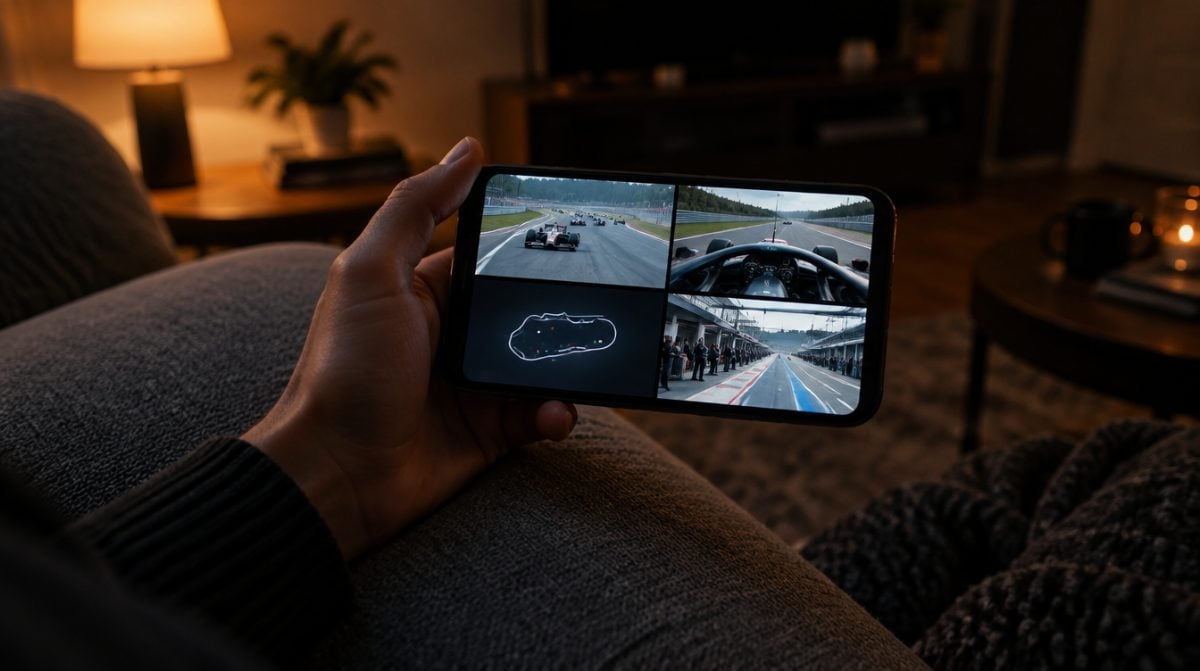
Until this week, following more than one live game at a time in Apple’s streaming app meant reaching for an iPad, an Apple TV box or a Vision Pro headset. With iOS 27.2, Apple TV app Multiview finally runs on iPhone as well, so you can fit up to four live sports feeds on the phone in your pocket.
The option surfaced after the update arrived on October 26, as first reported by MacRumors. It is easy to miss, so a lot of people already have it and have no idea. Below is where to find it, what it works with and where the rough edges are.
What you need for Apple TV app Multiview on iPhone
There is no separate switch or add-on to buy. If the four items below are in place, the button should show up on its own.
| Requirement | What it means |
|---|---|
| Software | iOS 27.2 or later on your iPhone |
| Subscription | An active Apple TV plan ($14.99 a month on its own, or included in an Apple One bundle) |
| Content | A live sports event that comes with that plan |
| Connection | A fast, steady network, since every extra window is another live video stream |
The subscription row is where most people get stuck. According to Apple’s Apple TV app page, three sports packages ride along with the plan without any added charge: Formula 1 race coverage, Major League Soccer and Friday Night Baseball. Those bundled events are what the new grid view is built for. Apple’s fine print also says the plan does not cover third-party branded subscription services or anything you rent or buy, so a cable add-on or a rented film is not where this will show up.
How to start Multiview in the Apple TV app on iPhone
- Update first. Open Settings, go to General, then Software Update, and install iOS 27.2 if your phone has not done it already.
- Open the Apple TV app. Make sure you are signed in with the Apple Account that pays for the Apple TV plan.
- Play a live event. Pick an F1 session, an MLS match or a Friday Night Baseball game that is streaming right now.
- Find the new button. Look along the bottom edge of the video player for the Multiview control and tap it.
- Add your feeds. Choose the extra windows you want, up to four in total.
How Apple TV app Multiview behaves after step five depends on the sport. Formula 1 gets the deepest treatment: you can grab a ready-made layout built around a single team, or assemble a custom grid that mixes onboard driver cameras, a live track map and other angles. The MLS and baseball layouts have not been described in detail yet, so don’t assume they offer the same menu of camera angles.
If you mostly watch races on a bigger screen, our guide on how to watch F1 on Apple TV with Dolby Atmos sound covers the living room side of the same coverage.
Does four streams on a phone screen make sense?
Early hands-on reports say yes, at least technically. Four separate F1 feeds from the Austin Grand Prix reportedly fit on an iPhone 18 Pro display at the same time, which is more than many people expected from a standard-size phone.
Fitting and enjoying are different things, though. Split a phone display four ways and each window gets small fast. The sweet spot for Apple TV app Multiview on a regular iPhone is probably two feeds: the main broadcast plus one companion view, such as a favorite driver’s onboard camera or the track map. Save the full four-window grid for when you want to keep an eye on everything during a chaotic restart.
The iPhone Duo is the obvious exception. Unfolded, its larger inner display gives each window far more room, and it is the model where a full grid of live sports feels like a natural fit rather than a party trick.
Apple TV app Multiview limits and open questions
- Sports only. Every report so far describes Apple TV app Multiview on live events bundled with the Apple TV plan, not on regular shows or films.
- Different sports, different options. The F1 version is the only one with detailed options on record so far.
- Data use adds up. Each window is its own live stream, so running four on cellular will chew through a data plan much faster than one. Wi-Fi is the safer bet for a full race.
- No official guide yet. Apple has not published a support article for the iPhone version or a list of which iPhone models handle four feeds best.
- Battery impact is unknown. Apple has not said how much extra power several simultaneous streams draw on iPhone.
One related change also arrived in the same update. iOS 27.2 brings simple profiles to the Apple TV app on iPhone, so each person in a household can keep separate recommendations. That pairs nicely with Apple TV app Multiview if one person in the family treats race day very differently from everyone else. If you are still deciding whether the living room box needs an upgrade too, our Apple TV 4K 2026 vs 2022 comparison lays out the differences.
Frequently asked questions about Multiview on iPhone
Can you do Multiview on the Apple TV app on iPhone?
Yes. Starting with iOS 27.2, the Apple TV app on iPhone can show up to four live sports streams at once, as long as you have an active Apple TV plan.
Does the Apple TV app have Multiview for every show?
No. It is built for live sports included with the Apple TV plan, such as Formula 1, MLS and Friday Night Baseball, rather than regular series and movies.
Does Apple TV app Multiview cost extra?
No separate fee has been mentioned. The sports it works with come with the standard Apple TV plan at $14.99 a month, or through Apple One.
Which devices support Multiview in the Apple TV app?
iPhone joins the list with iOS 27.2. Before this update, Multiview in the app was limited to Apple TV, iPad and Apple Vision Pro.
Should you try Multiview on your iPhone?
If you already pay for Apple TV and follow F1, MLS or Friday Night Baseball, update to iOS 27.2 and give Apple TV app Multiview a spin during the next live event, starting with two windows rather than four. Casual viewers who only stream shows can skip it, since nothing changes for them. Either way, the phone just became a pretty good second screen for the pit wall.