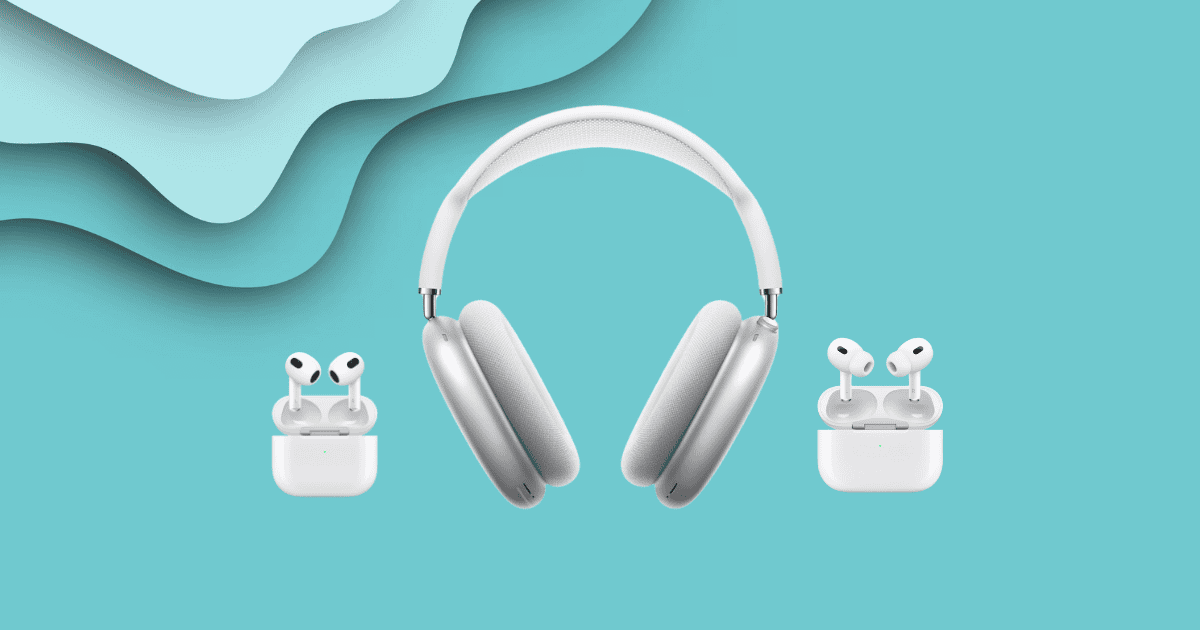
Put both AirPods in the case, close the lid, and wait 30 seconds. Open the lid, then press and hold the setup button on the back of the case for about 15 seconds, until the status light flashes amber and then white. That is the reset. AirPods 4 and AirPods Pro 3 are the exception, because their cases have no setup button at all.
Key Takeaways
- AirPods 1st, 2nd and 3rd generation and AirPods Pro 1st and 2nd generation reset from the setup button on the back of the case, held for roughly 15 seconds.
- AirPods 4 and AirPods Pro 3 have no setup button. You double-tap the front of the case three times instead.
- AirPods Max reset by holding the Digital Crown and the listening mode button together. The Lightning and USB-C versions use exactly the same procedure.
- Forget the AirPods in Bluetooth settings before you reset, or your iPhone can quietly restore the old pairing and hide whether the reset worked.
- If one side stays silent after a reset, check the audio balance slider in Accessibility before you assume the earbud has failed.
How Do You Reset AirPods?
Every model follows the same shape: settle the AirPods in the case, forget them on your iPhone, then hold or tap a control until the status light flashes amber and then white. Only the control changes. Find your model below.
The forget step matters more than most guides admit. If your iPhone still holds the pairing, it can hand the old settings straight back the moment the AirPods reconnect, and you conclude the reset failed when it never really happened. Do it first.
AirPods 1st, 2nd and 3rd generation, AirPods Pro 1st and 2nd generation
- Put both AirPods in the charging case and close the lid. Wait 30 seconds.
- On your iPhone or iPad, open Settings > Bluetooth. If your AirPods are listed, tap the More Info button beside them, then tap Forget This Device.
- Open the lid of the case and leave it open.
- Press and hold the setup button on the back of the case for about 15 seconds.
- Let go when the status light on the case flashes amber, then flashes white.
- Hold the open case next to your iPhone and follow the on-screen prompts to pair again.
The status light sits on the front of the case on AirPods Pro and third-generation AirPods, and inside the case on the first and second generation. Same light, same amber-then-white sequence.
AirPods 4 and AirPods Pro 3
These cases dropped the setup button, so the gesture moved to the front of the case. The rhythm is what people get wrong: three separate double-taps, each one waiting for the light to change before the next.
- Put both AirPods in the case and close the lid. Wait 30 seconds.
- Forget the AirPods in Settings > Bluetooth, exactly as above.
- Open the lid of the case.
- Double-tap the front of the case. The status light comes on.
- Double-tap the front again. The light begins flashing white.
- Double-tap a third time. The light flashes faster.
- Wait. When the light flashes amber and then white, the reset is complete.
- Hold the open case next to your iPhone to pair again.
If nothing happens on the first double-tap, you are probably tapping too gently or too slowly. It is a firm, quick tap on the flat front face, not the lid.
AirPods Max, Lightning and USB-C
Both versions reset identically. Apple did not change the procedure when it moved AirPods Max from Lightning to USB-C, and any guide that gives you two different methods is padding.
- Forget the headphones in Settings > Bluetooth if they are still paired.
- Press and hold the Digital Crown and the listening mode button at the same time. The listening mode button is the oval one sitting next to the Digital Crown on the right earcup.
- Keep both held for about 15 seconds, until the status light beside the charging port changes from flashing amber to flashing white.
- Release both buttons, then hold the headphones near your iPhone to set them up again.
Fifteen seconds feels long with two buttons held down and a tiny light to watch. Count it out. Letting go at ten does nothing at all.
| Model | Reset control | What you do |
|---|---|---|
| AirPods 1st, 2nd, 3rd gen | Setup button, back of case | Hold about 15 seconds |
| AirPods 4 | Front of case, no button | Double-tap three times |
| AirPods Pro 1st and 2nd gen | Setup button, back of case | Hold about 15 seconds |
| AirPods Pro 3 | Front of case, no button | Double-tap three times |
| AirPods Max (Lightning) | Digital Crown and listening mode button | Hold both about 15 seconds |
| AirPods Max (USB-C) | Digital Crown and listening mode button | Hold both about 15 seconds |
What to Do When a Reset Does Not Fix It
A reset clears pairing and settings. It does nothing for a blocked speaker, a flat battery in one earbud, or a balance slider someone nudged months ago. Those are the three faults that send people looking for a reset in the first place, and each has a different answer.
Only one AirPod is playing
Charge the case fully first, then put both AirPods in it for at least 30 seconds and check the battery reading on your iPhone. An earbud that never charges because of a dirty contact will read as connected and play nothing.
Next, isolate it. Leave the working AirPod in the case, put the silent one in your ear alone, and play something. If it works on its own, the fault is the link between the two and a reset is worth a second attempt. If it stays silent, you are looking at a blocked mesh or failed hardware.
They will not connect at all
Work down Apple’s order rather than jumping to the reset. Update your iPhone, iPad or Mac. Confirm both AirPods are actually charging in the case. Check that Bluetooth is on, then open Control Center, tap the AirPlay button, and see whether the AirPods appear in the output list at all.
If they do not, close the case lid, wait 15 seconds, and open it again. Then put the case into pairing mode: double-tap the front on AirPods 4 and AirPods Pro 3, or hold the setup button until the light flashes white on everything else. Only when that fails is a full reset the right move.
The volume is much lower than it used to be
Two causes, and they are easy to tell apart. If both sides are quiet, or one side is quieter than the other, start with the audio balance: go to Settings > Accessibility > Audio and Visual, find the Balance slider, and make sure it sits dead center. It is remarkably easy to knock off center by accident and it is invisible until you go looking.
If the balance is fine, the speaker mesh is clogged. This is by far the most common cause of AirPods that have been getting gradually quieter for months, and no amount of resetting will touch it.
How Do You Clean the Speaker Mesh Without Wrecking It?
Apple’s own method uses a soft-bristled children’s toothbrush and micellar water containing PEG-6 Caprylic or Capric Glycerides, the kind sold by Bioderma and Neutrogena. On AirPods Pro, take the ear tips off first so you can reach the mesh underneath.
Dip the brush, work the mesh in small circles for about 15 seconds, blot on a paper towel, and repeat twice more. Then run the same cycle again with distilled water to rinse. Leave them to dry for at least two hours.
Apple’s warnings matter just as much. Never run AirPods under a tap, and never go at the mesh with a pin, a paperclip or anything abrasive. People puncture it doing that and turn a cleanable problem into a replacement.
Frequently Asked Questions
Does resetting AirPods delete anything?
It clears the pairing and returns your settings to their defaults, so custom names, press-and-hold controls and noise control preferences all go. Nothing else is stored on AirPods, so there is nothing else to lose.
Can I reset just one AirPod?
No. The reset applies to the pair through the case, which is why both AirPods have to be inside it before you start. Resetting with one earbud missing is a common reason the process appears to do nothing.
Why do my AirPods reconnect to an old device after a reset?
Because that device still has them saved. AirPods paired to an iPhone are shared across everything signed in to the same Apple Account, so an old iPad on the same account will grab them back. Forget the AirPods on every device that still lists them, not just the one in your hand.
MacReview Verdict
Reset first, because it costs nothing and it genuinely fixes connection faults: AirPods that will not appear, that connect to the wrong device, or that stutter after a software update. Those are pairing problems and the reset is the correct tool.
But if your AirPods have been getting quieter over months rather than failing overnight, skip the reset entirely and clean the mesh. That pattern is earwax, not software, and every reset you perform is time you are not spending on the actual problem. Gradual decline means dirt. Sudden failure means pairing.
One more thing worth saying plainly, because a lot of pages get it wrong: AirPods Max owners do not need to work out which port their headphones have. Lightning or USB-C, it is the same two buttons for the same fifteen seconds.