
Maximize Your Computer’s Potential: Learn How to Seamlessly Run MacOS and Windows Side by Side!

In today’s digital age, the versatility to switch between operating systems can significantly enhance productivity and flexibility. For many professionals, creatives, and tech enthusiasts, the ability to run macOS and Windows side by side on a single machine is a game-changer. This dual-boot setup, often referred to as a “dual-boot” configuration, enables users to enjoy the best of both worlds: the sleek, user-friendly experience of macOS and the wide compatibility of Windows applications. This article will guide you through the process of setting up your computer to run macOS and Windows seamlessly, ensuring you can maximize your machine’s potential without having to choose between these two powerful operating systems.

Why Run macOS and Windows Side by Side?

Versatility and Flexibility: Running both operating systems side by side provides the flexibility to use specific applications that are exclusive to one OS without needing separate machines.

Performance Optimization: You can allocate resources according to the demands of specific tasks or applications, optimizing your computer’s performance.

Cost Efficiency: Dual-booting eliminates the need to invest in multiple devices, offering a cost-effective solution for accessing both operating systems.

Preparing Your Machine

Before you begin, it’s crucial to ensure your hardware is compatible with both operating systems. Apple’s Intel-based Macs are naturally equipped to handle this setup through Boot Camp, a utility provided by Apple that allows Windows to be installed alongside macOS. For Apple’s newer M1 and M2 chip Macs, while Boot Camp is not supported, alternatives like virtualization software come into play.

Backup Your Data: Always start by backing up your data to avoid any loss during the installation process.

Check for Updates: Ensure your macOS is up to date to avoid compatibility issues with the Boot Camp Assistant or virtualization software.

Download Windows 10 ISO File: You’ll need a Windows image file (ISO) for the installation, which can be downloaded from Microsoft’s official website.

Installation Process for Intel-based Macs

  1. Launch Boot Camp Assistant: Found in the Utilities folder, Boot Camp Assistant guides you through the process of installing Windows on your Mac.
  2. Partition Your Drive: Decide how much disk space you want to allocate to Windows. You can adjust this later if needed.
  3. Install Windows: Follow the on-screen instructions in Boot Camp Assistant to install Windows from the ISO file. Once installed, you can switch between macOS and Windows by holding down the Option (Alt) key during startup.

Running Windows on M1 and M2 Macs

Since Boot Camp is not available for Macs with Apple silicon, running Windows side by side requires virtualization software such as Parallels Desktop or VMware Fusion. These applications allow you to create a virtual machine (VM) that runs Windows inside macOS.

  1. Choose Virtualization Software: Download and install a virtualization application compatible with Apple silicon.
  2. Create a New Virtual Machine: Launch the virtualization software and use the Windows ISO file to create a new VM.
  3. Configure Your VM: Adjust settings like memory and processing power according to your needs.
  4. Install Windows: Follow the prompts to install Windows on your VM. Once installed, you can easily switch between macOS and Windows within the same user session.

Maximizing Performance

  • Allocate Resources Wisely: Balance the allocation of CPU cores and RAM between macOS and the Windows VM to ensure smooth performance on both systems.
  • Utilize External Drives for Additional Space: Especially for large applications or files, using an external hard drive can keep your system’s internal storage from filling up too quickly.
  • Keep Both Systems Updated: Regularly check for and install updates for macOS, Windows, and your virtualization software to maintain performance and security.

Running macOS and Windows side by side on your computer can significantly enhance your workflow, allowing you to leverage the strengths of both operating systems. Whether you’re using Boot Camp on an Intel-based Mac or virtualization software on an Apple silicon Mac, the process is straightforward, paving the way for a versatile computing experience.


This is a recurring post, regularly updated with new information and offers.

The MacReview YouTube Channel

The MacReview YouTube Channel

Visit Our
Youtube Channel

Watch Anywhere, Anytime!

Create an alt text, title, caption, description, keyword tag list separated by commas.
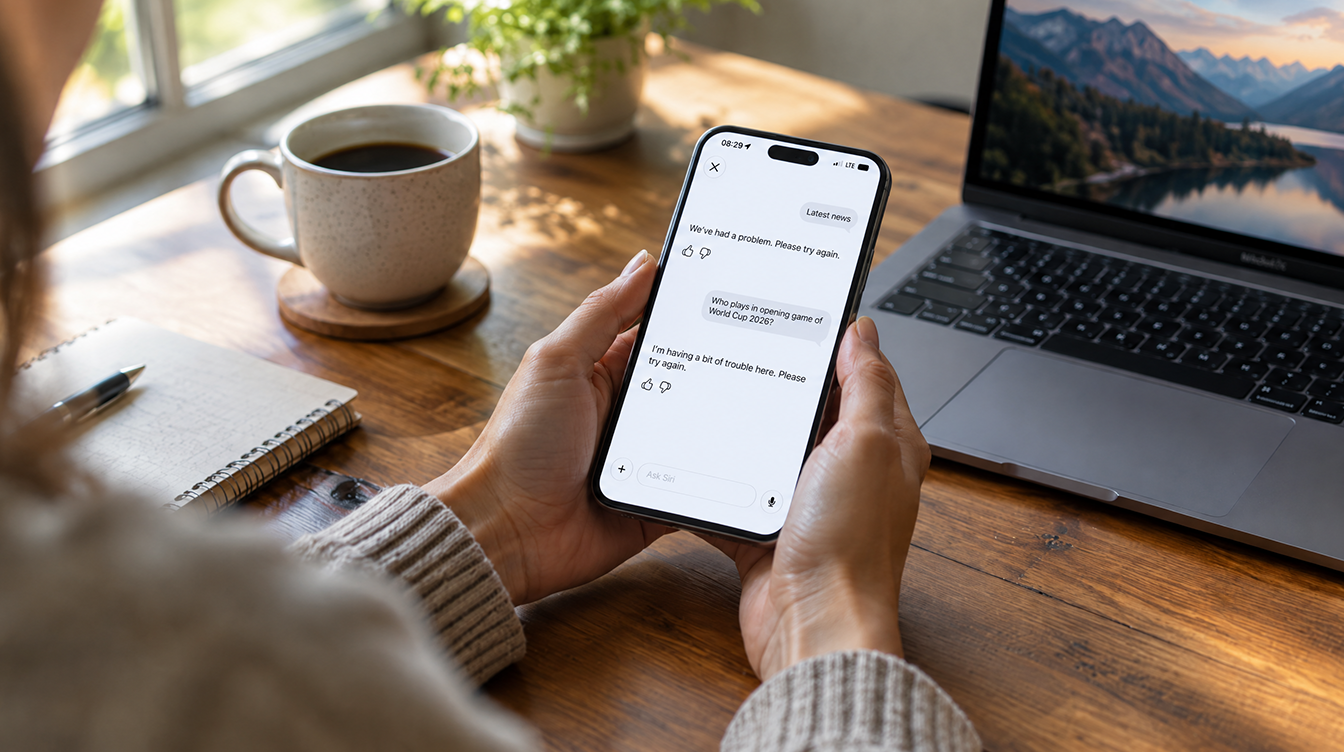
Apple Intelligence Siri is over a year late, but the delay means far more iPhone owners now hold compatible hardware. Here is why that changes things.
Reward your inbox with the TPG Daily newsletter img

Subscribe to Our Newsletter

REWARD YOUR INBOX WITH THE MACREVIEW NEWSLETTER

Microsoft 365 wordmark surrounded by glossy app icons for Word, Excel, PowerPoint, Outlook, OneNote, Exchange, and Microsoft 365 on a soft light background.

Microsoft 365 experienced a significant service disruption affecting business and enterprise customers across North America. The outage impacted core productivity services including Outlook email, Microsoft Defender, and administrative portals, leaving users unable to access critical business tools for several hours. […]

Wireless printer with WiFi signal icon representing Apple AirPrint enterprise printing

When Apple introduced AirPrint in 2010, enterprise IT administrators largely dismissed it as a consumer-focused feature. More than a decade later, AirPrint has fundamentally transformed how organizations handle printing infrastructure, forcing the entire industry to abandon complex driver management in […]

Password Utility Solves the FileVault Reboot Problem for Remote Mac Management

Managing remote Macs presents unique challenges, particularly when FileVault encryption creates accessibility issues during restarts. A new utility from Twocanoes Software addresses this long-standing problem for IT administrators who need reliable access to devices deployed across distributed locations. The FileVault […]

iPhone and AirPods on a black and white background

Introduction A recent rumor from China suggests that Apple is set to continue with the color-infused back glass technology in the upcoming iPhone 16, mirroring the aesthetic introduced in the standard iPhone 15 models. This development indicates a consolidation of […]

Man working on a laptop in a modern office at night with “Creator Studio” text and Apple logo above, plus floating creative app icons in the foreground.

Apple is reportedly planning to expand its subscription bundle offerings and introduce more paid features across its software ecosystem, following the launch of Apple Creator Studio last month. The company appears to be evaluating opportunities to monetize additional areas of […]

Apple Music app icon on a red and pink gradient background

Apple has released a beta version of Apple Music 5.2 for Android, introducing several features that first appeared in the iOS 26.4 preview. The update brings an AI-powered playlist creation tool, a refreshed album interface, and enhanced concert discovery features […]

Laptop on a dark desk displaying the Opera One browser start page with color-coded Tab Islands in the tab bar, a search field, and shortcut tiles over a purple and orange wave wallpaper.

,

Opera has released Opera One R3, a significant update to its flagship browser that introduces customizable Tab Islands, an enhanced AI assistant with YouTube comprehension capabilities, and dynamic themes with dedicated soundscapes. The update represents Opera’s continued effort to differentiate […]

Apple Arcade games available across Apple devices

In 2025, you’ll notice significant changes in Apple Arcade’s fan favorites, as exclusive updates aim to refine and enhance your gaming experience. Titles like WHAT THE CAR? and Hello Kitty Island Adventure are set to receive major gameplay improvements, alongside […]

Resident Evil 2 on iPhone, iPad and Mac

With the anticipated release of Resident Evil 2 on iOS and macOS, set for December 10, 2024, fans of the franchise are on the edge of their seats. This iconic survival horror game promises a refreshed experience tailored for mobile […]

Microsoft 365 wordmark surrounded by glossy app icons for Word, Excel, PowerPoint, Outlook, OneNote, Exchange, and Microsoft 365 on a soft light background.

Microsoft 365 experienced a significant service disruption affecting business and enterprise customers across North America. The outage impacted core productivity services including Outlook email, Microsoft Defender, and administrative portals, leaving users unable to access critical business tools for several hours. […]

A smartphone on a wooden desk displaying the Peaks App interface with holographic data overlays showing heart rate graphs, sleep quality, and energy levels next to a cup of coffee and a yoga mat.

Apple Watch users generate extensive health data through the Apple Health app, but translating that information into practical guidance remains challenging. A new app called Peaks aims to bridge that gap by analyzing sleep patterns to help users manage their […]

Smart home control icon interface representing connected home automation and device management

Mac users looking for quick access to their smart home devices now have a compelling new option. Itsyhome is a menu bar application that brings comprehensive smart home controls directly to macOS, supporting both HomeKit and Home Assistant ecosystems without […]

Sign Up For Newsletter mobile

Catch The Latest

Sign Up For Newsletter

Apple has confirmed plans to begin manufacturing the Mac mini in the United States later

Apple Music is currently offering a compelling promotion that allows new subscribers to enjoy three

Been FaceTiming with my younger daughter Jordyn recently and were messing around with this new

Apple’s Chief Operating Officer has traveled to Taiwan to finalize a critical agreement with TSMC

Scroll to Top