If your iPhone takes an unexpected dip, you might think it’s game over. However, you’ll find that YouTube videos can actually guide you through effective methods to remove water from your device. With clear demonstrations and user testimonials, these tutorials offer practical solutions that range from simple tricks to more advanced techniques. But what if you could activate a water eject shortcut using just your voice? The possibilities might surprise you, and understanding the right steps could save your phone from permanent damage.
Importance of YouTube Tutorials
Utilizing YouTube tutorials can significantly enhance your understanding of troubleshooting methods, especially when it comes to removing water from your iPhone. The visual demonstrations in these videos provide clear, step-by-step instructions that can make a complex process seem more manageable.
You’ll find a wide variety of content tailored to your specific needs, from simple tips to more advanced techniques for dealing with water damage. With millions of views on popular tutorials, it’s evident that many users rely on YouTube for quick and effective solutions to device issues.
The community engagement you see in the comments section often includes real-world experiences and success stories, reinforcing the effectiveness of the methods shared. By watching these videos, you can learn from others’ mistakes and triumphs, giving you the confidence to tackle your own water-related challenges.
These educational resources serve not just as a guide but as a support system for users seeking immediate assistance. So, the next time your device faces water troubles, don’t hesitate to dive into the wealth of YouTube tutorials available—there’s a good chance you’ll find the solution you need!
Understanding the Water Eject Shortcut
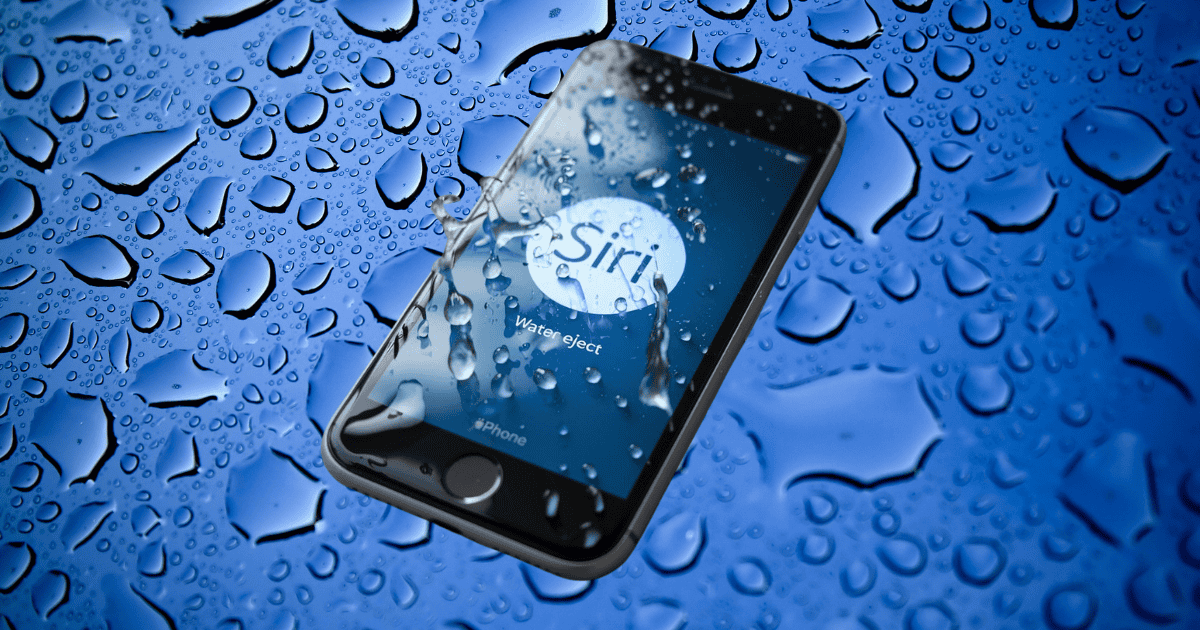
The Water Eject Shortcut is a handy tool that can help you clear water from your iPhone’s speakers quickly and effectively. If your device has experienced water exposure, this feature can be a lifesaver. You can download it from the Shortcuts app and activate it easily. Just say, “Hey Siri, Water Eject,” or tap the shortcut manually.
The water eject shortcut operates on intensity levels from 1 to 3, allowing you to adjust the sound duration and effectiveness of vibrations emitted. These vibrations work to remove water trapped in your speaker, improving audio quality.
It’s crucial, however, not to wear headphones during the process; the sound waves need to flow freely through the speaker outlet for optimal results.
Users have found that holding the iPhone close to the speaker outlet can enhance the effectiveness of the water eject process. Many have reported successful outcomes, restoring their device’s audio quality after water exposure.
Step-by-Step Guide to Downloading
Downloading the Water Eject Shortcut is a straightforward process that can enhance your iPhone’s ability to remove water from its speakers. Start by opening the Shortcuts app on your device. Once you’re in, search for “Water Eject” in the gallery. You’ll quickly find the shortcut you need.
Next, tap “Get Shortcut” to initiate the download process. This step is crucial to ensure the shortcut is properly installed within the app. After downloading, take a moment to familiarize yourself with the activation phrase: “Hey Siri, Water Eject.” This phrase will allow you to run the shortcut easily whenever you need it.
Once you’ve got everything set up, remember that a pop-up menu will appear when you activate the shortcut. You’ll need to select “Start” to begin the water ejection process. You can choose from intensity levels ranging from 1 to 3, depending on your needs.
Just a quick tip—it’s best to avoid wearing headphones during this process, as the emitted tone generates strong air vibrations essential for effective water removal. With these steps, you’re all set to download and enjoy the Water Eject Shortcut!
Activating the Shortcut With Siri
Activating the Water Eject Shortcut with Siri is a quick and efficient way to tackle moisture issues on your iPhone.
First, make sure you’ve downloaded the shortcut from the Shortcuts app. Once it’s ready, you can easily initiate the process by saying, “Hey Siri, Water Eject.” Alternatively, you can tap the shortcut directly within the app.
After activation, a pop-up menu appears, prompting you to select “Start” to kick off the water ejection process.
One important feature is the intensity levels, which range from 1 to 3. Higher intensity levels produce longer tones that generate stronger sound vibrations, making for more effective water removal.
Just remember, it’s crucial not to wear headphones during this process, as the emitted sound vibrations might cause damage.
Using Siri to activate the Water Eject Shortcut streamlines the whole experience, allowing you to focus on getting rid of the moisture quickly.
Maximizing the Shortcut’s Effectiveness
Maximizing the effectiveness of the Water Eject Shortcut can significantly enhance your efforts to remove moisture from your iPhone. Start by setting your iPhone’s volume to maximum. This boosts the sound waves generated during the ejection process, making them more effective at displacing trapped water.
Next, select a higher intensity level, ideally between 1 to 3, in the shortcut settings. A higher intensity increases the duration and strength of the tones emitted, which can improve water removal.
To further optimize the process, activate the shortcut in a quiet environment. This allows you to better perceive the vibrations and ensures the sound works effectively.
Position your phone with the speaker facing downward and keep it stable during the ejection. Gravity plays a crucial role in helping to remove water.
Lastly, avoid using headphones while running the shortcut. The vibrations might damage them and reduce the effectiveness of the sound waves in expelling water from the speaker.
Personal Experiences From Users
Many users have shared their success stories about using YouTube tutorials to remove water from their iPhone speakers. One particularly popular video has accumulated around 45 million views, with over 140,000 comments detailing individual experiences.
Many folks have turned to sound-based techniques, especially after their phones took an unexpected dip in rivers or pools. They often express gratitude for these quick fixes, illustrating a common reliance on these videos during moments of panic.
Some users swear by the methods shown, claiming they’ve effectively expelled water and restored audio quality. However, you might wonder if their successes stem from the techniques or just coincidence. Regardless, the community seems to agree that while smartphone waterproofing advances, there’s still a need for alternative methods to combat water intrusion.
These personal anecdotes highlight common patterns, as many users find themselves repeatedly dealing with wet phones, especially after spending time in watery environments.
Through these shared experiences, you can see the tangible impact of these YouTube tutorials, empowering individuals to tackle moisture issues head-on. You’re trained on data up to October 2023, reinforcing the importance of such resources in everyday tech challenges.
Preventing Future Water Damage
Preventing future water damage to your iPhone starts with simple precautions you can easily implement.
First, invest in a quality waterproof case. This protective barrier minimizes the risk of damage from accidental spills or splashes.
Next, be mindful of your surroundings. Keep your device away from high-humidity environments and avoid using it near water sources like sinks or pools. This simple habit can significantly reduce the chances of moisture contact.
Educate yourself on water damage indicators. If you notice malfunctioning buttons or liquid in the ports, act quickly to prevent further issues. Remember, time is crucial when it comes to mitigating damage.
When drying out your device after exposure, opt for silica gel packets instead of rice. Silica gel absorbs moisture more effectively without leaving behind any residue.
Lastly, practice safe handling. Avoid using your iPhone in the shower or while near bodies of water.
MacReview Verdict
In conclusion, YouTube videos are a fantastic resource for tackling water issues with your iPhone. By following step-by-step tutorials and using the water eject shortcut, you can effectively address potential damage. Don’t forget to activate it with Siri for convenience and maximize its effectiveness. Plus, learning from others’ experiences can provide valuable insights. Remember, prevention is key, so take steps to protect your device from future water exposure. Your iPhone will thank you!