In the world of digital aesthetics, Apple has taken a significant step forward with iOS 18, now allowing users to hide app and widget names on their home screens. This feature opens up new possibilities for creating a streamlined, clutter-free interface that enhances both functionality and visual appeal. Let’s explore how to access these features, customize your home screen, and achieve a minimalist aesthetic on iOS 18.
1. Accessing the Home Screen Editing Mode
The first step to customizing your home screen is accessing the editing mode. This mode allows you to modify the layout, size, and appearance of app icons and widgets:
- Long-Press on the Screen: Start by pressing and holding an empty area on your home screen. After a moment, the app icons will begin to jiggle, indicating that you’ve entered editing mode.
- Tap “Edit”: Once the icons are jiggling, locate the “Edit” button at the top left corner of the screen to open additional customization options.
- Choose “Customize”: Within the customization menu, you’ll find various settings to adjust app names and icon sizes. Select the “Customize” option to access these features and start personalizing your home screen layout.
This straightforward process gives users immediate control over their home screen layout, enabling quick adjustments for a more refined look.
2. Adjusting App Icon Sizes for Maximum Impact
One of the standout features of iOS 18 is the ability to adjust app icon sizes, which can contribute to a cleaner and more organized home screen:
- Select Icon Size: In the customization menu, choose the “Large” icon size. Larger icons not only improve visibility but also automatically hide app names, creating a more minimalist look.
- Choose Smaller Icons if Desired: While large icons hide app names for a clean look, smaller icons can be selected if you prefer a more traditional layout with visible app names.
- Flexibility to Revert: Users can switch between icon sizes at any time, giving them full control over the visual presentation of their home screen. This feature is exclusive to iOS 18, providing a level of customization not available in previous versions.
Adjusting app icon sizes can make a noticeable difference, offering a balance between functionality and aesthetics, and accommodating personal style preferences.
3. How to Hide App Names for a Minimalist Look
For those who prefer a clutter-free home screen, hiding app names is an effective way to simplify the overall design:
- Enable Large Icons: By selecting the large icon size, app names are automatically hidden, allowing for a clean, streamlined layout that emphasizes app icons without text.
- Minimalism at Its Best: This feature supports a minimalist approach, enhancing visual appeal and reducing distractions, especially on devices with numerous apps.
- Focus on Functionality: Hiding app names makes it easier to navigate by visual cues alone, improving quick access and reducing the need to read through labels.
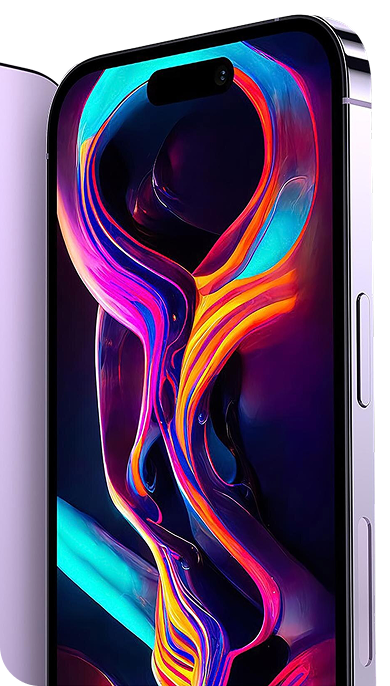
This feature allows users to achieve a visually appealing home screen that showcases app icons and custom backgrounds without the clutter of text.
4. Removing Widget Names for a Clean Aesthetic
iOS 18 also enables users to hide widget names, providing a more cohesive look across the entire home screen:
- Enter Widget Editing Mode: By long-pressing on a blank area, users can select the “Edit” option and then “Customize” to hide widget names.
- Choose Widget Sizes: Larger widget sizes naturally push names off the screen, focusing attention on the widget’s functionality rather than its label.
- Organize for Visual Harmony: With widget names hidden, users can arrange their widgets based on aesthetics, achieving a more balanced and visually appealing layout.
The ability to hide widget names is particularly valuable for users seeking a polished look, as it allows for greater emphasis on the content and functionality of the widgets themselves.
5. Enhancing the Aesthetic Appeal of Your Home Screen
With iOS 18, enhancing your home screen’s aesthetic appeal has never been easier. By combining hidden app and widget names with other customization features, you can create a truly personalized digital environment:
- Maximized Clarity: Large icons without labels improve readability and make it easier to identify apps at a glance.
- Custom Themes and Colors: Users can match icon sizes and colors with their backgrounds, creating a cohesive and attractive home screen.
- Reduced Visual Clutter: Hiding names minimizes distractions, allowing users to focus on their most-used apps and widgets, improving overall productivity.
A minimalist design not only makes your home screen look more polished but also enhances user experience by reducing unnecessary elements.
6. Tips for Saving and Reverting Changes
To ensure your customizations are saved correctly, follow these simple steps:
- Tap Outside the Menu: After making adjustments, simply tap outside the customization panel. This action saves your settings and applies them to your home screen immediately.
- Exit Editing Mode: To exit, tap on any blank area of the screen. Your changes will now be visible, reflecting your new home screen layout.
- Reverting Changes: If you want to return to the original layout, re-enter editing mode and adjust the settings back as desired.
By following these steps, you can lock in your changes and enjoy a personalized home screen experience that matches your preferences.
7. Crafting a Minimalist Home Screen: Best Practices
Creating a minimalist home screen on iOS 18 involves careful selection and arrangement of apps and widgets. Here are some tips to achieve the best results:
- Use Large Icons: This option hides app names and gives a clean, organized appearance that emphasizes icon design over text.
- Opt for Muted Backgrounds: Select a subtle wallpaper that complements your icon and widget colors, creating a unified visual theme.
- Limit Widget Use: Choose only the most essential widgets, arranging them in a way that minimizes visual distractions while maintaining functionality.
By carefully curating your home screen, you can achieve a minimalist look that enhances both form and function.
Embracing a New Level of Personalization
iOS 18’s ability to hide app and widget names allows users to take home screen customization to the next level. This feature caters to the growing trend of digital minimalism, enabling users to create a streamlined, distraction-free interface that reflects their unique style. By adjusting icon sizes, hiding names, and organizing widgets, users can enjoy a more visually appealing and functional home screen.
With these enhancements, Apple continues to support users in their quest for a more refined digital experience, providing tools that make it easier than ever to create a home screen that is both beautiful and practical.