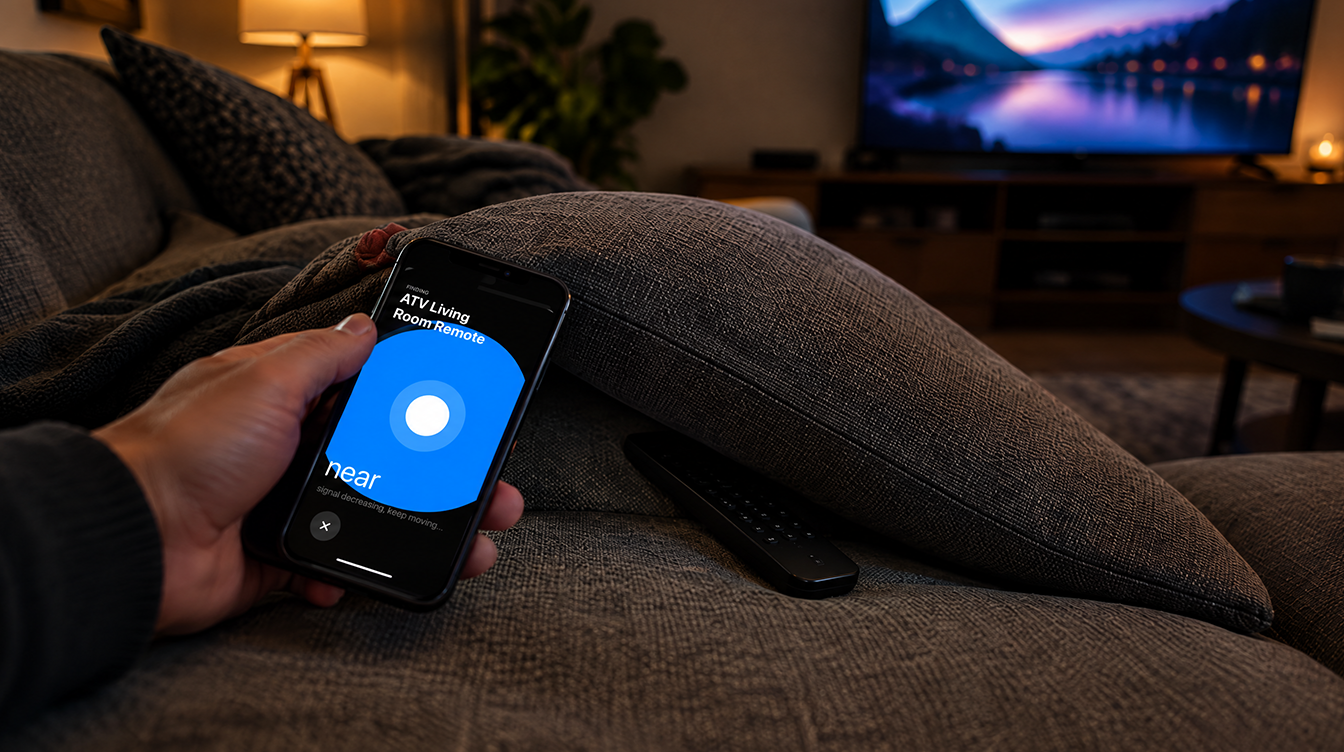
Finding a lost Apple TV remote used to mean lifting every couch cushion, checking under the dog and eventually blaming the kids. Since iOS 17, your iPhone can do the searching for you, with an on-screen circle that grows as you walk toward the remote and a label that switches from “far” to “near” to “here.”
The feature is easy to miss because it lives inside the Apple TV Remote control in Control Center, not in the Find My app. It supports second-generation and newer models of the Siri Remote and Apple TV Remote, and Apple is reportedly working on a new remote that could make the hunt even shorter. Here is how to use what you already have.
What you need to track down a lost Apple TV remote
Three pieces have to line up before the Find button shows up. If any one of them is too old, the option simply will not appear.
| Item | Minimum requirement |
|---|---|
| Remote | Second-generation (or newer) Siri Remote or Apple TV Remote |
| iPhone | iOS 17 or later |
| Apple TV | tvOS 17 or later |
Owners of a first-generation Siri Remote or the older aluminum and white Apple Remote are out of luck here. Apple’s support page for a lost Apple TV remote links to a guide for identifying which model you own, which is worth a quick look before you start.
How to find Apple TV remote with iPhone, step by step
Grab your iPhone, stand roughly where you last remember using the lost Apple TV remote, and follow these steps.
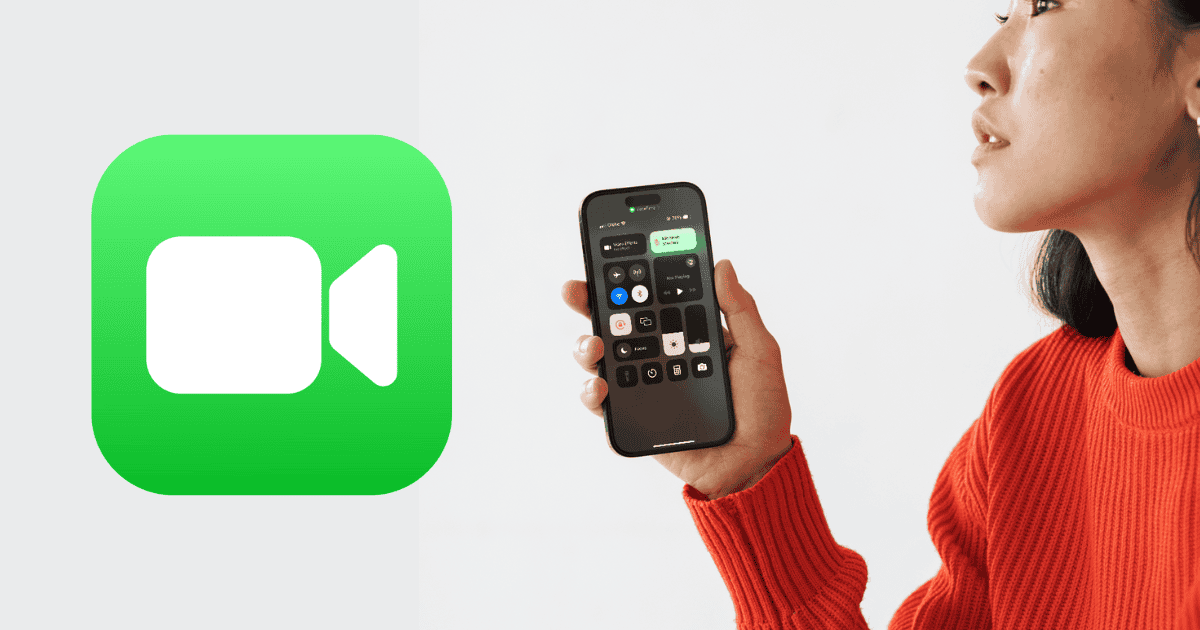
- Pull up Control Center. Face ID iPhones (iPhone X onward) use a downward swipe starting at the upper-right corner, while iPhone 8, iPhone SE and earlier models need an upward swipe from the very bottom of the display.
- Open the Apple TV Remote control by tapping its icon.
- At the top, tap your Apple TV’s name so the list of devices opens.
- Tap Find next to the remote you have misplaced.
- Wait for the iPhone to say the remote has been located. If nothing connects, walk around the room for a few seconds.
- Follow the white circle. It gets bigger as you close in, and the text moves from “far” to “near” and finally “here.”
- Tap Close when the remote is back in your hand.
A practical tip: move slowly and pause for a second or two between steps. The circle reacts to distance, so walking quickly from room to room makes it harder to read which direction is getting warmer.
Find Apple TV remote not showing up? Try these fixes
A common snag is opening the device list and seeing no Find button next to the lost Apple TV remote at all. Work through these, easiest first.
- Check the software. Your iPhone needs iOS 17 or newer and the Apple TV needs tvOS 17 or newer. Without both, there is nothing to tap.
- Check the remote model. Only the 2nd-generation Siri Remote and Apple TV Remote and later can be located this way.
- Move closer to the TV. The remote talks over Bluetooth, and Apple suggests staying within about 20 feet (6 meters) when a connection is weak.
- Think about the battery. A remote that has been buried for weeks may simply be flat. Unfortunately, a dead remote cannot answer the search, so you are back to old-fashioned looking.
Once you have it back, you can see how much charge is left under Settings, then Remotes and Devices, then Remote on the Apple TV. Apple says a full charge takes about three hours, and most people only need to plug in a few times a year.
Use your iPhone as the remote while you search
Even if the lost Apple TV remote stays missing all evening, the show can go on. The same Apple TV Remote control in Control Center works as a full replacement: swipe in the touch area to move around, tap to select, and press and hold the side button to talk to Siri. It needs iOS 12 or later on iPhone or iPadOS 13 or later on iPad.
An Apple Watch can stand in too, with the Digital Crown handling volume. Our guide on using your Apple Watch as a TV remote walks through that setup.
Remote found but not responding? Point it at the Apple TV from about three inches away and press and hold Back (or Menu) together with Volume Up for about five seconds to pair it again. If that fails, hold the TV/Control Center button and Volume Down for about five seconds until the status light on the Apple TV blinks off and on, then try pairing once more. Apple’s remote troubleshooting page also suggests charging for 30 minutes and updating tvOS.
A new Siri Remote could make this easier
Help may be on the way for anyone who deals with a lost Apple TV remote every week. Bloomberg’s Mark Gurman reports that a revised Siri Remote with its own built-in speaker has been in testing at Apple, which would let it make a sound when you are looking for it. The same reporting says the next Apple TV 4K moves to an A19 chip and may gain microphones so you can ask Siri for things without the remote in hand.
Apple’s “Welcome home” event on Tuesday, October 13 is expected to introduce the new Apple TV 4K, with store availability reported for October 30. None of the remote changes are confirmed, though, and Apple has not said whether a speaker-equipped remote would be sold separately or work with older Apple TV boxes. Until then, the iPhone method above is the best tool for a lost Apple TV remote.
Frequently asked questions
Can you find an Apple TV remote without an iPhone?
Not with Apple’s built-in tool. The Find option only appears in the Apple TV Remote control on an iPhone running iOS 17 or later, so without one you will need to search by hand.
Does the Apple TV remote make a sound when you search for it?
Not today. Apple’s current method relies on your iPhone showing a growing circle and a far, near or here label, although a remote with a built-in speaker is reportedly in testing.
What should I do if my lost Apple TV remote never turns up?
Use your iPhone, iPad or Apple Watch as the remote in the meantime, then buy a replacement from Apple or another retailer. Pairing a new remote automatically replaces the old one.
Should you replace a lost Apple TV remote or keep looking?
If your remote is a 2nd-generation model or newer, run the iPhone search before spending a cent, since it usually beats any amount of cushion lifting. If you own an older remote, or the search comes up empty after a dead battery, lean on your iPhone as the controller for now and hold off on a replacement until after Apple’s October 13 event. A speaker might be the small upgrade that finally ends the nightly couch excavation.