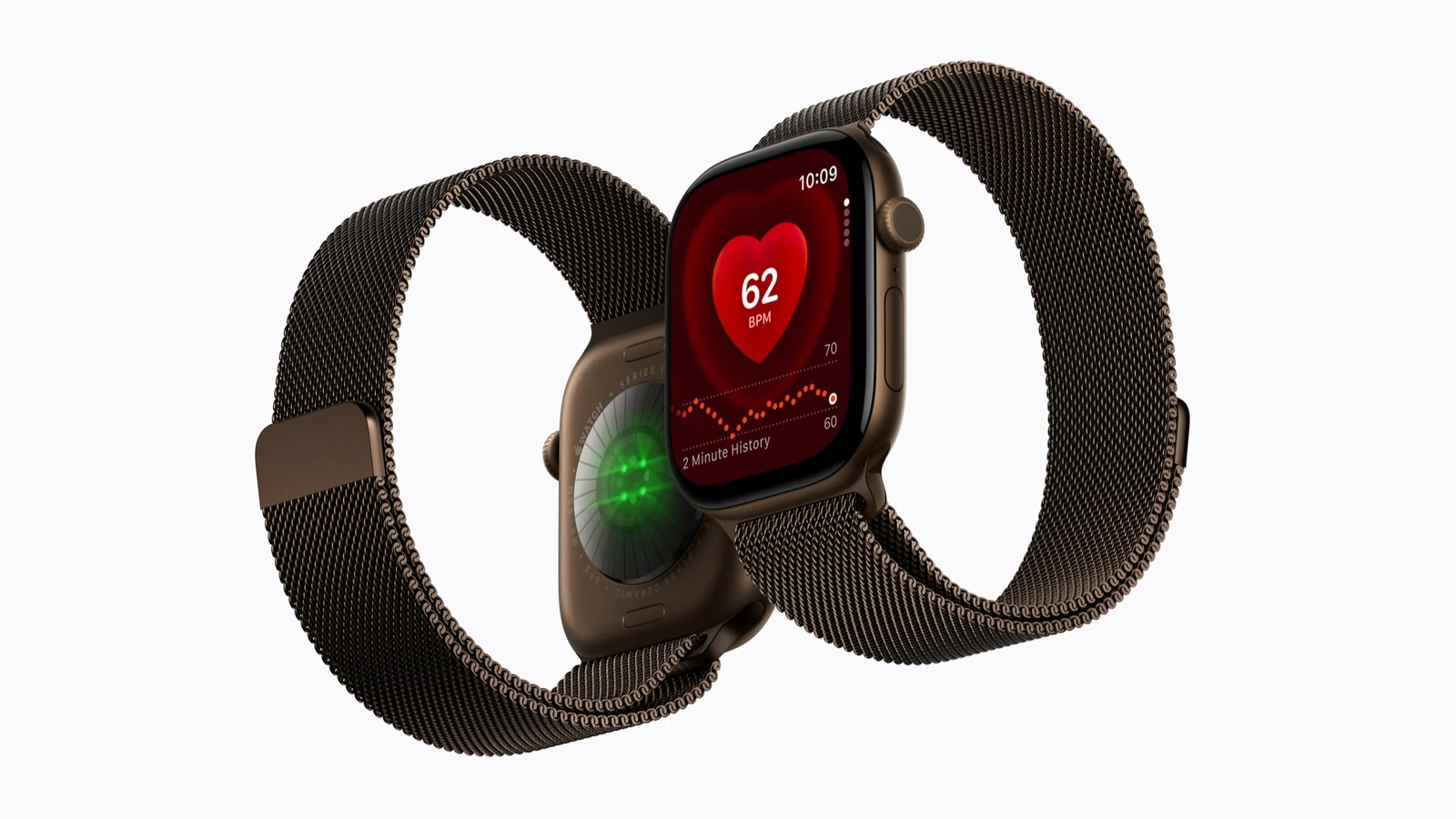
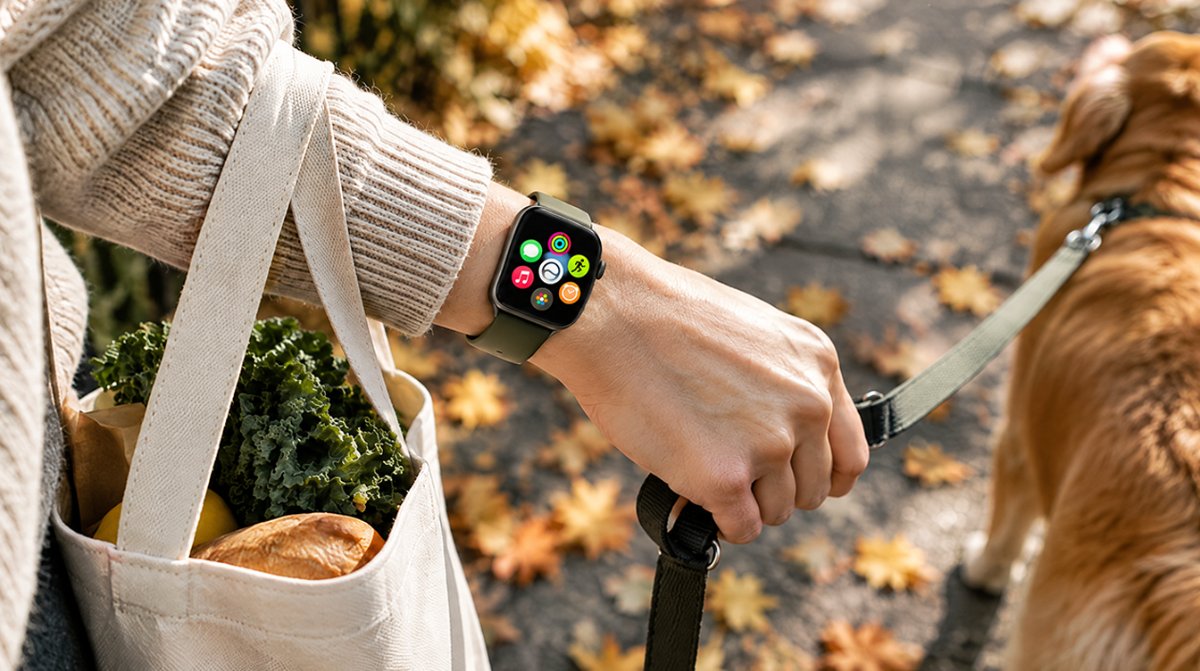
You are walking the dog, your phone is in a back pocket, and a text from school slips by because the tap on your wrist felt like a polite suggestion. If that sounds familiar, the fix is a single setting. Apple Watch vibration strength is controlled in Sounds and Haptics, and switching from Default to Prominent gives every alert a firmer nudge.
It takes under a minute on the watch or on your iPhone. Below we walk through both routes, the two other haptic switches people mix up with it, and what to check when the taps stop altogether.
The three Apple Watch vibration strength options
Apple keeps this simple. Apple Watch vibration strength comes down to one control with three positions, and it governs the wrist taps you feel for alerts and notifications.
| Setting | What it does | Who it suits |
|---|---|---|
| Default | The out-of-the-box wrist tap | Most people at a desk or at home |
| Prominent | A stronger, more noticeable tap | Runners, parents on the move, anyone who misses alerts |
| Off | No wrist taps for alerts | Meetings or sleep, if you rely on sound or your iPhone |
There is no slider and no fourth level. Prominent is the strongest choice Apple offers, so if it still feels too faint, the cause is usually somewhere else (more on that below).
How to change Apple Watch vibration strength on the watch
- Press the Digital Crown and open the Settings app.
- Scroll down and tap Sounds & Haptics.
- Find the Haptics section.
- Pick Prominent for a firmer tap, or Default to go back to the standard feel.
To test your new Apple Watch vibration strength, ask someone to send you a quick message and see whether the tap gets your attention.
Change it from your iPhone instead
Small screens and big thumbs do not always get along. The same control lives in the companion app, which is handy if you are setting up a watch for a parent or a kid.
- Open the Apple Watch app on the paired iPhone.
- Tap the My Watch tab.
- Go to Sounds & Haptics.
- Choose Default, Prominent or Off under Haptics.
Apple’s own guide to adjusting volume and haptics on Apple Watch confirms that most of these options can be changed from either device, so use whichever is closer. Either way, the Apple Watch vibration strength choices are the same three.
Crown Haptics and System Haptics are different switches
The same Sounds and Haptics screen holds two more toggles, and they do not change your Apple Watch vibration strength for alerts at all.
- Crown Haptics. The faint clicks you feel while turning the Digital Crown to scroll. Turn it off if the ticking bugs you; leave it on if you like the feedback.
- System Haptics. The small taps that confirm system controls and interactions. These are on or off only, with no stronger mode.
A common snag is turning one of these off while hunting for the alert setting, then wondering why scrolling feels dead. If that happened, flip them back on.
Pick tones that come with a clearer tap
Every built-in alert sound is paired with its own haptic pattern, so the tone you choose also shapes how the tap feels. Some patterns are easier to tell apart than others, which can matter as much as Apple Watch vibration strength when you are busy.
Try a few patterns. Inside Sounds & Haptics in Settings, each alert type (Ringtone and Text Tone among them) has its own list, and tapping any tone plays its pattern on your wrist before you commit. Giving texts and calls very different patterns means you can tell them apart without looking.
Feel the time, too. If you like silent cues, Taptic Time taps out the hour when you hold two fingers on the watch face. Turn it on in Settings, then Clock, then Taptic Time, and choose Digits, Terse or Morse Code. If your watch is set to always speak the time, Taptic Time stays off until you enable Control With Silent Mode under Speak Time.
Apple Watch vibration not working? Check these first
Sometimes the issue is not the tap at all, but where the alert is going. Apple’s page on notifications on Apple Watch explains the routing rules, and they catch plenty of people out.
- Your iPhone is unlocked. When you are using your phone, alerts go to the iPhone, not the watch. That is by design, not a fault.
- The watch is locked. A lock icon on the watch face means notifications are going to the iPhone instead.
- Do Not Disturb is on. Look for its icon on the watch face, swipe up, and tap it to turn it off.
- The two devices lost touch. Open Control Center with the side button, then check for a red iPhone, a red X or a Wi-Fi icon. Keep the devices close, make sure Airplane Mode is off on both, and check that Bluetooth and Wi-Fi are on for the iPhone.
- Restart both. Turn the watch and the iPhone off and on again. If they still will not talk, unpair and pair them again.
- Third-party apps. Their alerts arrive only when the paired iPhone has a network connection.
Only once those check out is it worth blaming your Apple Watch vibration strength setting. And if Haptics is set to Off, nothing else on this list will matter.
Bought one of the new models this fall? Our roundup of everything Apple announced in September, including Series 12 and Ultra 4 covers what changed in the hardware, and our list of features that make a new Apple Watch stand out is a good next stop.
Frequently asked questions about Apple Watch vibration
Can you increase vibration on Apple Watch beyond Prominent?
No. Apple offers three haptic levels, Default, Prominent and Off, and Prominent is the strongest. There is no slider or extra boost setting in watchOS.
Why is my Apple Watch not vibrating for texts?
Most often your iPhone is unlocked, so the text goes to the phone instead. Also check that Haptics is not set to Off, that the watch is unlocked and that Do Not Disturb is off.
Does turning off Crown Haptics change alert vibrations?
No. Crown Haptics only controls the clicks you feel while scrolling with the Digital Crown. Alert taps follow the separate Haptics setting.
Should you switch to Prominent haptics?
If you have ever missed a call while carrying groceries, yes: raise your Apple Watch vibration strength to Prominent and leave it there. People who mostly sit at a desk can stay on Default without missing much. Either way, check the iPhone unlock rule before assuming the watch is broken, because a firmer tap cannot help an alert that never reached your wrist.