
This post contains affiliate links. If you buy through them, we may earn a commission at no extra cost to you. Read our disclosure.
Disclosure: This article contains affiliate links. If you sign up through one of them MacReview may earn a commission at no extra cost to you. We only recommend tools we’d use ourselves.
If you live in Apple’s ecosystem you already have most of a document storage system: iCloud Drive syncs everywhere, Notes lock with Face ID, the Passwords app is end-to-end encrypted, and Advanced Data Protection gives you encryption Apple itself cannot break.
Three questions about it go unanswered anywhere good: can the family see your files, what happens if Apple locks you out, and how do you password-protect a folder?
Can Family Sharing see your iCloud files?
No. Family Sharing is a billing and entitlement system, not a shared account. Every member keeps their own Apple Account, password, and separate iCloud storage. Joining a group does not merge anyone’s data, and nothing in it gives the Family Organizer a file browser pointed at another member’s iCloud Drive.
What Family Sharing does share
- Purchases. With Purchase Sharing on, eligible apps, music, films, and books appear in other members’ purchased lists. Individual purchases can be hidden.
- Subscriptions and storage capacity. Apple One, Apple Music, Apple TV+, Apple Arcade, and the iCloud+ plan. An iCloud+ plan pools the capacity, not the contents.
- A family photo album and calendar, holding only what members deliberately put in them.
- Location, if each person opts in via Find My. Per-person, switchable off.
- Screen Time and Ask to Buy for children, where a parent or guardian sets limits and reviews activity.
What stays private
Your iCloud Drive files, Photos, Notes, Messages, Mail, Safari history, and Health data stay with your account. Another member sees any of it only through a deliberate act on your part: sharing a folder, album, or note, adding someone to a Shared Group in the Passwords app, or turning on location sharing. No ambient visibility, no “organizer override.”
So the full answer to who can access my iCloud Drive is short: you, anyone you shared a file or folder with, anyone holding your Apple Account password who can pass two-factor authentication, and, without Advanced Data Protection, Apple under valid legal process. Family members are not on it.
Start here: turn on Advanced Data Protection
Most people reading this haven’t, and it’s the highest-value two minutes in the article.
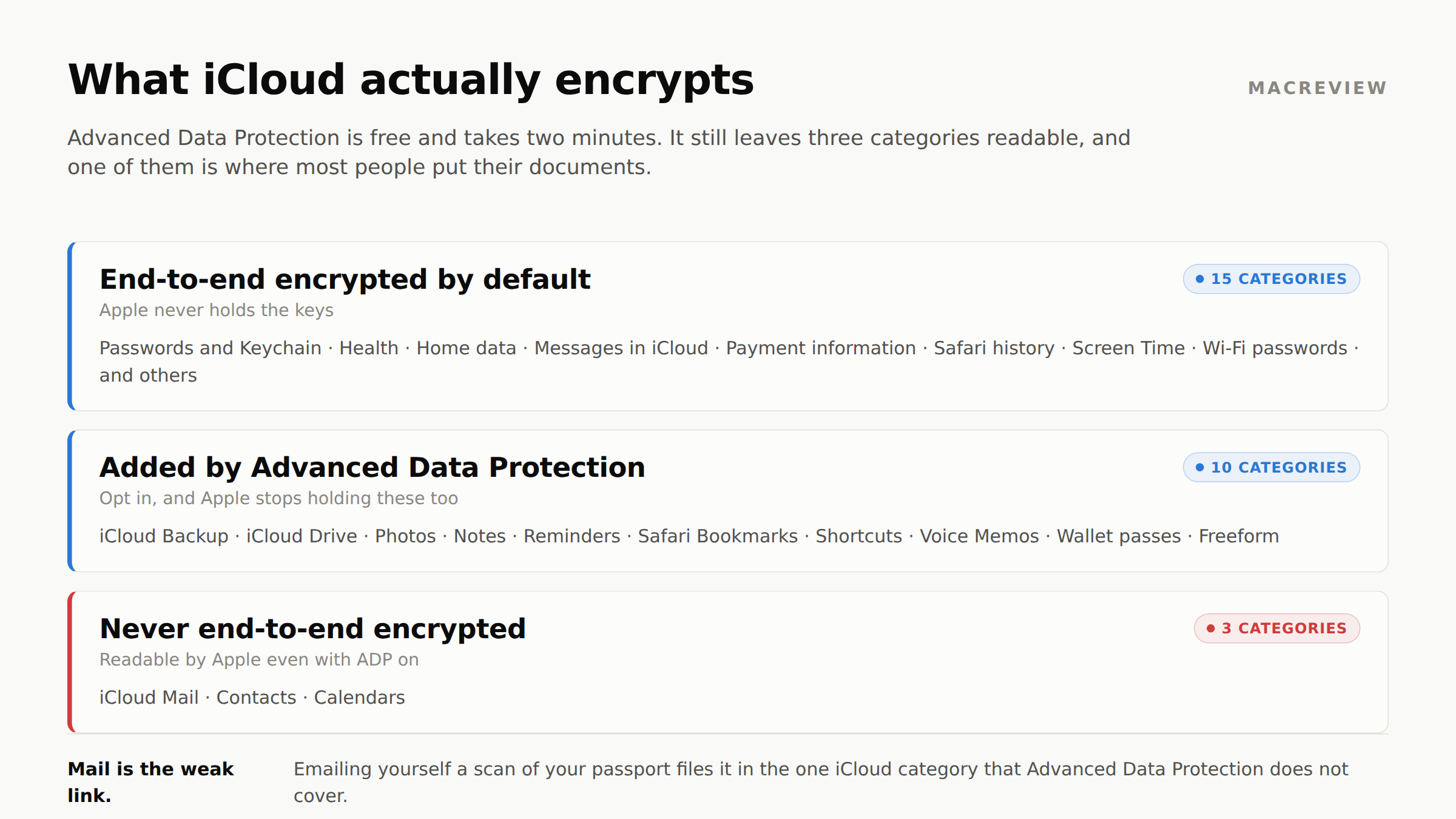
By default, iCloud end-to-end encrypts 15 data categories: Passwords and Keychain, Health, Home data, Messages in iCloud, payment information, Safari history, Screen Time, Wi-Fi passwords, and others. For these, Apple never holds the keys.
But ten categories are not in that list by default: iCloud Backup, iCloud Drive, Photos, Notes, Reminders, Safari Bookmarks, Shortcuts, Voice Memos, Wallet passes, and Freeform. They’re encrypted in transit and on Apple’s servers, but Apple holds the keys, so Apple can restore your data if you’re locked out, and can also produce it under valid legal process.
Advanced Data Protection moves those 10 categories to end-to-end encryption.
- iPhone/iPad: Settings → [your name] → iCloud → Advanced Data Protection
- Mac: System Settings → [your name] → iCloud → Advanced Data Protection
Every device signed into your account must be on iOS 16.2 / macOS 13.1 or later, and you’ll have to set up a recovery contact or recovery key before it will enable. A recovery key is a 28-character code, and setting one up turns off Apple’s standard account recovery, so losing it locks you out permanently. A recovery contact is the gentler option: they only ever pass you a code, never see your data, and you can name up to five.
Advanced Data Protection: pros and cons
Pros
- Covers 10 more categories, including iCloud Drive, Photos, Notes, and iCloud Backup.
- Apple no longer holds the keys, so it cannot read that data, produce it under legal process, or leak it in plaintext.
- Free, about two minutes.
Cons
- No Apple-side recovery. If you lose access and have no recovery method, your data is gone permanently. Apple can’t help. That’s the point of end-to-end encryption.
- iCloud Mail, Contacts, and Calendars are never end-to-end encrypted, even with ADP on. Apple keeps them accessible for interoperability with standard mail and calendar protocols. So the common habit of emailing yourself a scan of your passport puts that document in the one iCloud category ADP doesn’t cover. Stop doing that regardless of what else you decide.
- Every signed-in device must meet the OS minimum, so an old iPad in a drawer must be updated or signed out.
- Unavailable to new UK accounts.
- Access on iCloud.com switches off. Apple disables data access on the website by default the moment ADP is on. You can turn it back on, but approval runs through a trusted device and lasts about an hour, with a fresh approval each time you open a new category such as photos, notes, or files. If your devices are lost, dead, or stolen, the web stops being a fallback route to your own documents.
UK readers: Apple withdrew Advanced Data Protection for new UK users in February 2025 after a government order under the Investigatory Powers Act, and its support documentation, last updated in September 2025, confirms it remains unavailable there with no restoration timeline. That same page says UK users who had already turned ADP on will be given a period of time to disable it themselves in order to keep using their iCloud account, though Apple has published no deadline. Apple’s first tribunal challenge was dismissed in October 2025 after the government withdrew the original order and replaced it with a narrower one covering British users, and Apple did not restore the feature. Press reports say Apple filed a fresh challenge in July 2026, with hearings expected later this year. Treat the UK position as unsettled rather than about to be reversed.
What happens to your iCloud files if Apple locks your account
Every safety guide on this topic is about hackers. The likelier failure is duller: a forgotten password with no trusted device left to approve a reset, a stolen iPhone taken by someone who watched you type the passcode, an account disabled for security reasons. Your documents sit on Apple’s servers and you can’t reach them.
Without ADP, Apple holds the keys for iCloud Drive, Photos, and backups, so standard account recovery can eventually get you back in. Slow, but the data survives.
With ADP on, Apple holds nothing, and no recovery method means the data is unrecoverable, permanently. That is why Apple won’t enable ADP until you’ve set up at least one of these. Treat the requirement as the feature, not the friction.
- A recovery contact is someone you trust who can generate a code that gets you back into your account. They get no access to your files, photos, or messages: a way back in, not a copy of anything.
- A recovery key is a code you generate and store yourself. Nobody else has a copy, Apple included. Keep it where you keep your passport, not in the iCloud account it unlocks.
Set both, and pick a contact who wouldn’t be locked out alongside you. It’s the same wall your family hits after a death, covered in our guide to Activation Lock on a deceased owner’s iPhone.
How to password-protect a folder in iCloud Drive
iCloud Drive has no folder password. No such setting exists on any Apple platform, and pages claiming otherwise describe a third-party app or a feature that doesn’t exist.
The correct macOS answer is an encrypted disk image. In Disk Utility, File → New Image → Blank Image creates one: choose an encryption option, set a password, and format it as APFS. Apple’s warning is worth repeating, because if you forget that password the image cannot be opened at all. The result is one file that mounts as a drive when you enter the password and is unreadable otherwise. Put it in iCloud Drive and you have a password-protected container that syncs.
Four caveats:
- Choose the sparse bundle format if offered. It stores data across many small band files, so changes sync incrementally rather than re-uploading the whole image.
- Don’t mount it on two Macs at once. That’s how you get sync conflicts that are hardest to untangle.
- iPhone and iPad can’t mount disk images, so the contents are Mac-only.
- Store the image’s password in the Passwords app, not inside the image. People do this.
What each Apple tool is actually good at
iCloud Drive and the Files app
Good for: the everyday archive. Syncs everywhere, integrates with Continuity Camera scanning, and with ADP on it’s genuinely well protected.
One setting worth changing: right-click a folder in iCloud Drive and choose Keep Downloaded. It pins the folder locally, so it survives Optimize Mac Storage offloading it and stays readable with no signal. If you keep one family-documents folder, pin that one.
Where it stops: iCloud Drive is a filesystem with no concept of what a document is, which is the root of all three gaps below.
Locked Notes, with a limitation that disqualifies it
Notes lock with your device passcode or a separate Notes password and unlock with Face ID or Touch ID. Apple can’t read them. Choose the method at Settings → Apps → Notes → Password (it moved under “Apps” in iOS 18, so older guides pointing at Settings → Notes are stale).
Now the part almost nobody mentions. You cannot lock a note that contains a PDF, audio, or video. Also excluded: Keynote, Pages, and Numbers documents, tagged notes, shared notes, and notes in IMAP accounts like Gmail or Yahoo.
Since a scanned document is a PDF, that rules out the exact use case people reach for: you can lock a note of typed account numbers, but not one holding a scan of your birth certificate. And if you forget a custom Notes password, previously locked notes are permanently inaccessible, with no Apple recovery path.
Fine for a short list of sensitive text. Not a document vault.
The Passwords app and Digital Legacy
Since iOS 18 Passwords is a standalone app, end-to-end encrypted by default, no ADP required. Shared Groups let you share credentials with family members who are in your Contacts, and everyone in the group can add and edit. It’s the only supported way to give family ongoing access to credentials.
Separately, name a Legacy Contact and after your death they can reach your iCloud data with an access key plus a death certificate. Everyone should set it up. We cover the exclusions in what a Legacy Contact can and cannot access.
The three gaps
What’s left after you’ve done all of the above correctly.
Gap 1: Your passwords don’t inherit
iCloud Keychain is explicitly excluded from Legacy Contact access. Your Legacy Contact gets Photos, Notes, Mail, iCloud Drive files, Health data, and more, but not a single password, passkey, or saved card.
No Apple mechanism inherits credentials. A Shared Group created while you’re alive is the only succession plan Apple’s stack offers. Otherwise they die with you, along with every non-Apple account they unlock.
Gap 2: Nothing tells you a document expired
Passports, insurance policies, registrations, professional licenses, and permits all expire, invariably at an inconvenient moment. Apple has nothing for this in Files, Notes, or Calendar beyond a reminder you set by hand and hope you dated correctly.
Gap 3: Sharing is all-or-nothing
You can share an iCloud Drive folder. You cannot share one document with your sister, a different one with your accountant, and a third with your adult child, each seeing only their own. In a family spanning households, that’s the difference between a working system and someone ending up with your Apple Account password on a sticky note.
Filling the gaps
For a lot of people the honest answer is: don’t. If everything lives on your own devices, ADP plus a well-named iCloud Drive folder plus a Legacy Contact is a defensible setup, and you shouldn’t pay for something you won’t use.
It changes when more than one household is involved: aging parents whose paperwork you manage, siblings coordinating an estate, a partner who needs access to things you handle. That’s where all-or-nothing sharing breaks down and a purpose-built vault earns its keep.
Trustworthy is the one we’d point Apple users toward, because it addresses all three gaps rather than re-implementing iCloud Drive. It stores credentials and documents together with per-item permissions (a sibling sees one health directive and nothing else) and adds the expiration reminders Apple doesn’t have. It’s SOC 2 Type 2 certified, HIPAA compliant, uses AES-256 encryption with multi-factor authentication on by default, and doesn’t train AI on customer data. Offline mode keeps documents readable with no signal, and Gmail sync pulls policies and statements out of your inbox, which matters given that iCloud Mail is the one category ADP doesn’t protect.
Pricing before you click: the free tier is single-user with 2 GB, so the shared access motivating most of this isn’t on it. Sharing, multiple members, and automatic reminders start at $10/month billed annually for five members and 20 GB. For comparison, 200 GB of iCloud+ is $2.99/month. You’re paying for the permission model, not the storage.
The setup we’d actually recommend
- Turn on Advanced Data Protection. Two minutes, free, largest single security gain available.
- Set a recovery contact and a recovery key, and store the key with your will.
- Set a Legacy Contact, storing the access key with your will, not in the iCloud account it unlocks.
- Create one iCloud Drive folder for family documents and mark it Keep Downloaded.
- Scan your essentials using our complete iPhone document scanning guide.
- Set up a Passwords Shared Group with whoever would need to act for you.
- Check your Medical ID and Emergency SOS setup while you’re in Settings.
- If more than one household is involved, add a vault with real permissions on top.
- Stop emailing yourself documents. It’s the one iCloud category Apple can read.
Steps 1 through 4 take an evening and cover most people. Step 9 takes no time and closes the widest hole in the average setup.
Frequently asked questions
Can the Family Organizer see my iCloud Drive files?
No. Being the Organizer is a billing role covering the iCloud+ plan, subscriptions, and Ask to Buy for children, and none of it includes a view into another member’s files: no filename list, no preview, no override switch. The Organizer’s storage screen shows how much of the shared plan is in use, not what is stored. It reports one combined Family figure, not a per-person breakdown.
Can Apple employees read my documents?
It depends on whether Advanced Data Protection is on. With ADP off, Apple holds the keys for iCloud Drive, Photos, and iCloud Backup, so that content is technically accessible to Apple and can be produced under valid legal process. With ADP on, Apple holds no keys for those categories and cannot read them regardless of who asks. iCloud Mail, Contacts, and Calendars stay readable to Apple either way.
Does FileVault protect the files I save to iCloud?
No. FileVault is full-disk encryption on the Mac itself, protecting the copy sitting on your startup disk if the machine is stolen, and it does not extend to files once they sync to iCloud. The cloud copy is governed entirely by iCloud’s own encryption, which is where Advanced Data Protection decides whether Apple can read it. Run both, but never treat one as a substitute for the other.
Is it safe to store a photo of my Social Security card in iCloud?
Reasonably safe in iCloud Photos or iCloud Drive with Advanced Data Protection turned on, and noticeably weaker without it. ADP end-to-end encrypts both categories, so the image is unreadable to anyone without your devices and credentials. With ADP off, it sits in a category where Apple holds the keys. What you should not do is email the photo to yourself, because iCloud Mail is never end-to-end encrypted even with ADP on.
What happens to my iCloud files if Apple locks or disables my account?
Without ADP the files survive, because Apple still holds the keys and standard account recovery can eventually return you to them. With ADP on, Apple holds nothing, so being locked out with no recovery contact and no recovery key makes the data permanently unrecoverable. That is precisely why Apple will not enable ADP until one is in place. Confirm yours still works: a recovery contact you have lost touch with is not one.
Can I password protect a single folder in iCloud Drive?
Not with any built-in setting, because Apple has never shipped a folder password on any platform. The workaround on a Mac is an encrypted disk image created in Disk Utility, which gives you one password-protected container that syncs like any other file. Locked Notes will not stand in for it: a note holding a PDF cannot be locked at all.
More in this series: iPhone document scanning, and where scans actually save · What a Legacy Contact can and cannot access · How to set up Medical ID and Emergency SOS · Activation Lock and a deceased owner’s iPhone, Mac, and iCloud
Sources: Apple: iCloud data security overview · Apple: Turn on Advanced Data Protection · Apple: Lock or unlock notes · Apple: Data a Legacy Contact can access · Apple: iCloud+ plans