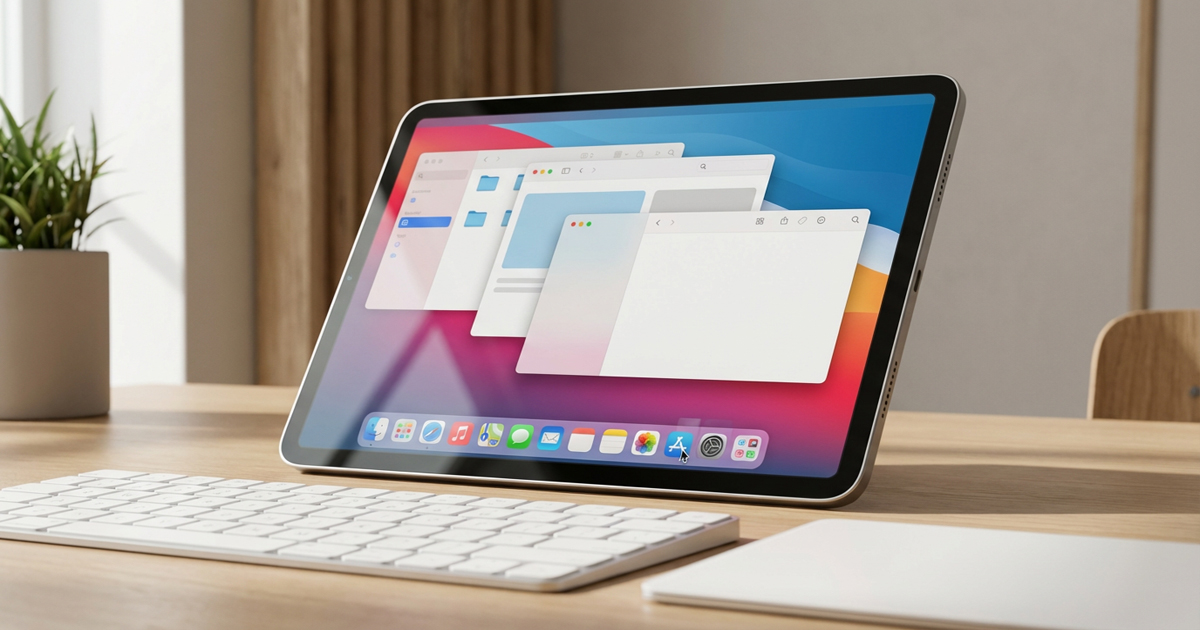
iPadOS 26 introduces a significant overhaul to how multitasking works on iPad, including a new app windowing system that borrows heavily from the Mac. While these changes have garnered plenty of attention, a lesser-known settings toggle may be the key to unlocking a truly Mac-like experience on your iPad.
A New Windowing System Transforms iPad Multitasking
iPadOS 26 reportedly brings major changes to the iPad’s multitasking capabilities, moving away from the previous system that relied heavily on Split View and Slide Over. The new windowing system allows users to freely resize app windows, overlap them, and manage multiple apps in ways that were previously impossible without Stage Manager.
The update also introduces a menu bar to iPad, another design element lifted directly from macOS. These changes represent Apple’s most substantial effort yet to bridge the gap between iPad and Mac workflows.
The ‘Automatically Show and Hide Dock’ Setting
Hidden within the Settings app under Multitasking and Gestures is a new toggle labeled “Automatically Show and Hide Dock.” This option fundamentally changes how the Dock behaves while working in apps, making the iPad experience feel considerably more Mac-like.
Mac users will find the concept familiar, though with an important twist. On macOS, the Dock is visible by default unless users enable automatic hiding, or when apps enter full-screen mode. On iPad, the Dock traditionally appears on the Home Screen but stays hidden when working in apps unless manually invoked.
How the New Setting Works
When the “Automatically Show and Hide Dock” setting is enabled in iPadOS 26, the Dock can remain visible even while working inside apps. The key difference from macOS is that “Show” is emphasized first, indicating that the default behavior leans toward visibility rather than hiding.
To keep the Dock visible while working, two conditions must be met:
- The app window cannot be in full-screen mode
- The window cannot occupy the bottom portion of the screen where the Dock resides
As long as these requirements are satisfied, the Dock will remain visible, providing persistent access to your most-used apps and, reportedly, folders from the Files app.
Why This Setting Matters
The ability to keep the Dock visible while working makes switching between apps faster and more intuitive. Rather than relying on gestures or interrupting your workflow to summon the Dock, it simply stays accessible at the bottom of the screen.
This change is particularly valuable when combined with the new windowing system. Users can resize app windows to avoid the Dock area, creating a workspace that closely mirrors the Mac experience. The persistent Dock also reportedly works well with the new ability to pin Files app folders to the Dock, streamlining file management workflows.
For iPad users who have long wished for more Mac-like flexibility, this setting represents a meaningful step forward in how Apple thinks about productivity on the platform.
Enabling the Setting
To enable the “Automatically Show and Hide Dock” setting in iPadOS 26:
- Open the Settings app
- Navigate to Multitasking and Gestures
- Toggle on “Automatically Show and Hide Dock”
- Resize your app windows to ensure they do not overlap with the Dock area at the bottom of the screen
Once enabled, the Dock will remain visible as long as your app windows are positioned and sized appropriately.
FAQ
Q: Does this setting work on all iPad models running iPadOS 26?
A: The new windowing system and Dock behavior are expected to be available on all iPad models that support iPadOS 26, though performance may vary depending on hardware capabilities.
Q: Can I still hide the Dock when I want to?
A: Yes. If you expand an app window to full-screen or position it over the Dock area, the Dock will automatically hide. You can also disable the setting entirely in the Multitasking and Gestures menu.
Q: Does this affect battery life?
A: Keeping the Dock visible may have a minor impact on battery life, though Apple has not released specific data on this. The effect is likely minimal and comparable to other persistent UI elements.
MacReview Verdict
The “Automatically Show and Hide Dock” setting in iPadOS 26 is a small but meaningful addition that significantly enhances the iPad multitasking experience. When combined with the new windowing system and menu bar, it brings the iPad closer to the Mac in terms of workflow flexibility without sacrificing the touch-first interface that makes the platform unique.
For users who frequently multitask or manage multiple apps at once, enabling this setting is likely to feel like a natural evolution of how the iPad should work. It is a welcome example of Apple refining the iPad experience by thoughtfully borrowing concepts from macOS while adapting them to fit the tablet form factor.