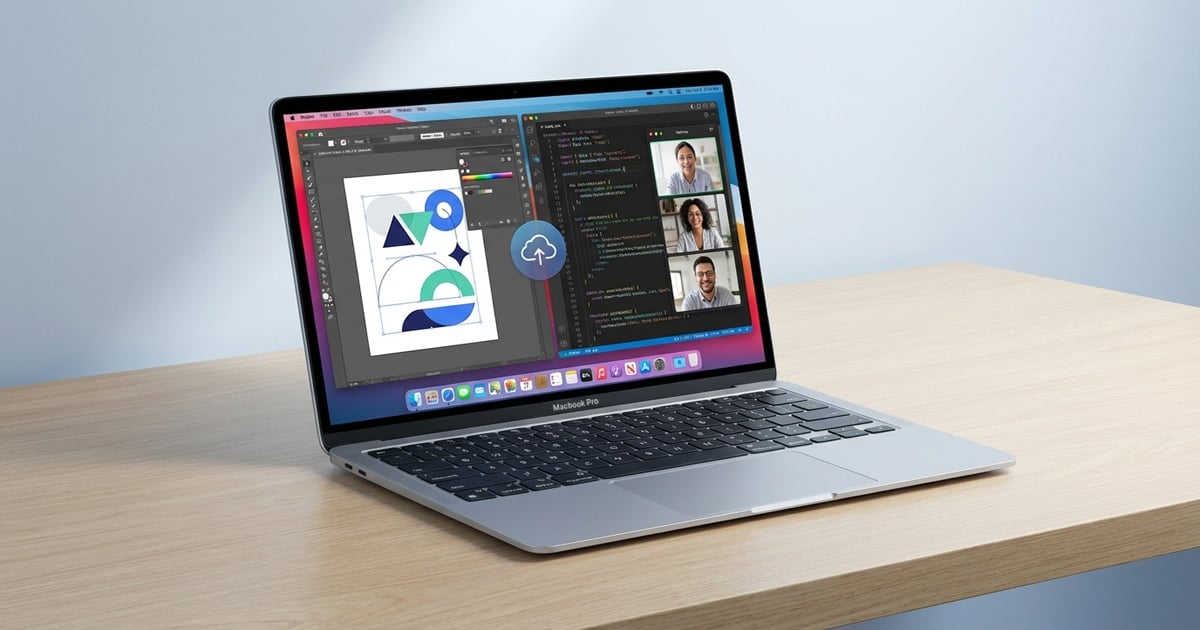
Apple introduced High Performance screen sharing mode in macOS Sonoma, significantly enhancing the Mac’s native Screen Sharing application. This advanced mode delivers reduced latency, stereo audio output, HDR support, and improved responsiveness for professional workflows, making it particularly valuable for users working with applications like Final Cut Pro and Logic Pro remotely.
System Requirements for High Performance Mode
High Performance screen sharing requires specific hardware and network conditions to function properly. Both the host and viewer computers must be Apple Silicon Macs running macOS Sonoma 14 or later. Intel-based Macs are not supported for this feature.
Network infrastructure is equally critical. Apple recommends a wired network connection of at least 75Mbps for a single 4K display. A gigabit Ethernet connection provides optimal performance and meets Apple’s bandwidth requirements with overhead. Communication must be available on UDP ports 5900, 5901, and 5902 on both machines.
Setting Up High Performance Screen Sharing
Configuration involves several steps on both the host and viewer Macs. Proper setup ensures optimal performance and security.
Host Mac Configuration
- Navigate to Settings, then General, then Sharing
- Enable Remote Management
- Click the information button next to Remote Management
- Add a user account and assign appropriate permissions
Viewer Mac Connection Process
- Open the Screen Sharing application from Applications/Utilities
- Select the host Mac from the Connections page
- Authenticate using the username and password configured on the host
- Select High Performance for Screen Sharing Type
- Choose either 1 Virtual Display or 2 Virtual Displays for Display Type
- Click Continue to establish the connection
Key Performance Improvements
Reduced Latency and Higher Frame Rates
The most significant improvement is dramatically reduced latency. High Performance mode delivers frame rates up to 60fps with responsiveness that approaches native local control. This enhancement makes professional video editing in Final Cut Pro via a remote connection viable for the first time, with timeline scrubbing and playback feeling nearly identical to working directly on the host machine.
Enhanced Audio Capabilities
High Performance mode enables stereo audio output, routing sound from the host Mac to the viewer Mac’s audio output. The low latency makes it practical to work with music production applications like Logic Pro, where even slight audio delays would typically be problematic. Audio synchronization with video playback remains tight during timeline scrubbing and playback.
HDR and Color Accuracy
The feature supports HDR reference mode and 4:4:4 chroma subsampling, enabling accurate color work over a remote connection. Users can edit and view HDR video content on the host machine while seeing it rendered in full HDR on the viewer’s display, assuming the local display supports HDR.
To activate HDR reference mode, set the display’s Color Profile to HDR Video (P3-ST 2084) preset, then click the High Dynamic Range button at the top of the Screen Sharing interface.
Additional Features and Capabilities
Dual Virtual Display Support
High Performance mode supports up to two virtual displays, allowing users to run one application in full-screen mode while accessing other applications on the second virtual display. The Display dropdown menu in the upper right corner of the Screen Sharing app provides quick switching between viewing both displays side by side, as individual windows, or focusing on a single virtual display.
Dynamic Resolution Adjustment
When the viewer display has a different native resolution and aspect ratio than the host, the Dynamic Resolution button at the top of the Screen Sharing app forces the remote display to adapt to the local display settings. This is particularly useful when connecting from a MacBook Pro with a non-16:9 aspect ratio to a host Mac configured for standard 4K displays.
Current Limitations
High Performance screen sharing has several important constraints that users should understand before deployment.
- Only one High Performance session can be active on each Mac at any given time
- When a High Performance session is active, all displays connected to the host Mac are blanked for privacy and cannot be used locally
- Maximum resolution per virtual display is limited to 4K (3840 x 2160) or 1920 x 1080 when using HiDPI resolution settings
- The feature requires Apple Silicon hardware and cannot be used with Intel-based Macs
Professional Use Cases
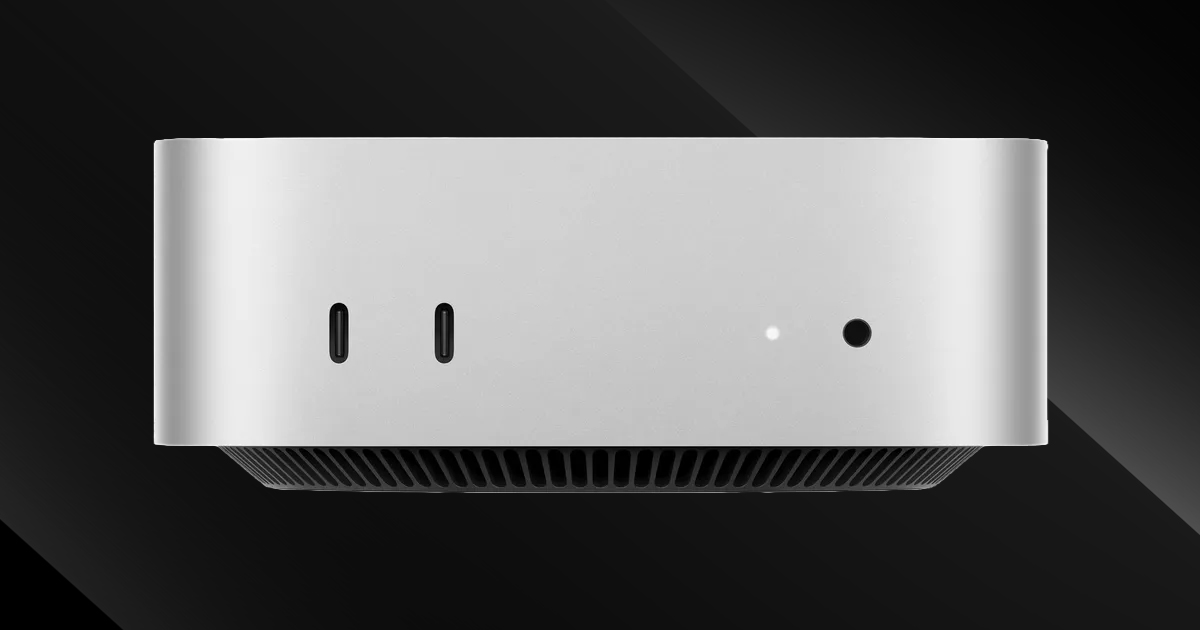
High Performance screen sharing enables several practical professional workflows. A common scenario involves accessing a high-powered headless Mac Studio or Mac Pro from less powerful portable machines like a MacBook Air. With a high-bandwidth wired connection, users can leverage the computational resources of a well-equipped desktop system from a remote location, effectively extending the capabilities of lightweight hardware.
Video editors can perform intensive Final Cut Pro editing on a powerful host machine while working from a MacBook Pro in another room or building. Music producers gain similar benefits with Logic Pro, where the combination of low latency and stereo audio makes remote music production genuinely practical for the first time.
FAQ
Q: Can I use High Performance screen sharing over Wi-Fi?
A: While technically possible, Apple recommends a wired network connection of at least 75Mbps for optimal performance. Wi-Fi connections may introduce latency and bandwidth limitations that degrade the High Performance experience, particularly for 4K displays.
Q: Will High Performance mode work with my Intel Mac?
A: No. High Performance screen sharing requires both the host and viewer to be Apple Silicon Macs running macOS Sonoma 14 or later. Intel-based Macs can still use standard screen sharing but cannot access High Performance mode.
Q: Can someone else use the host Mac’s physical displays while I’m connected in High Performance mode?
A: No. When a High Performance screen sharing session is active, all displays connected to the host Mac are blanked for privacy and security reasons. Local display access is disabled for the duration of the remote session.
Q: What happens if my network bandwidth drops below 75Mbps during a session?
A: The session will likely experience increased latency, reduced frame rates, and potential visual artifacts. For professional work, maintaining stable bandwidth at or above Apple’s recommended 75Mbps threshold is essential for a reliable experience.
MacReview Verdict
High Performance screen sharing represents a significant advancement in macOS remote access capabilities, transforming screen sharing from a convenience feature into a viable tool for professional workflows. The combination of low latency, high frame rates, stereo audio, and HDR support makes it practical to perform demanding creative work on remote Macs in ways that were previously impractical or impossible.
The feature’s limitations are reasonable given its requirements. The need for Apple Silicon hardware and high-bandwidth wired connections reflects the technical demands of delivering near-native performance over a network. The privacy-focused design that blanks host displays during sessions is a sensible security measure for professional environments.
For users with compatible hardware and proper network infrastructure, High Performance screen sharing unlocks genuine productivity gains. Video editors, music producers, and other creative professionals can now leverage powerful desktop Macs from lightweight portable systems without meaningful performance compromises. This capability becomes particularly valuable in scenarios involving headless Mac configurations or shared high-performance systems accessed by multiple team members at different times.